iPhone App
Get Started on iPhone
Install Vigilant Church Security, accept your invitation, and find the tools available to your account.
The Vigilant Church Security iPhone app uses the same account and church membership as the web app. It requires iOS 17 or later.
Install and sign in
- Install Vigilant Church Security from the App Store.
- If you are new, accept the invitation sent by your church administrator before signing in.
- Open the app and enter your Vigilant email and password.
- Complete MFA if your account uses it.
- Choose the intended church when you have more than one membership, then confirm your campus.
Installing the app does not create a church membership. Ask your administrator to check your invitation or membership if the intended church is missing.
Find your tools
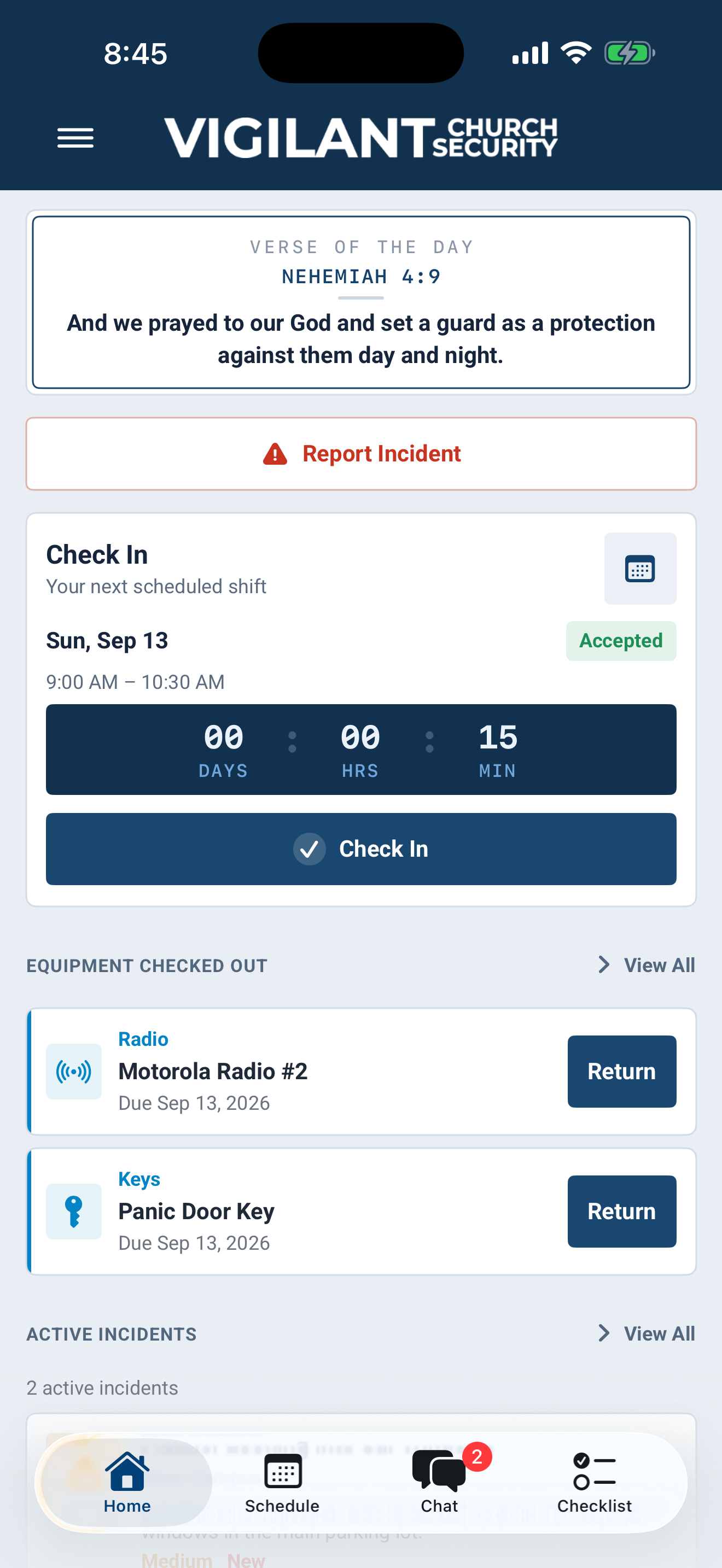
Start on Home for current activity and available quick actions. Use the bottom tabs for Schedule, Chat and Checklist when available. The menu includes tools such as Incidents, Equipment, BOLO, Team Notices, Procedures, Trainings, Campus Maps, Church Admin, Support and Profile. Available tools depend on the installed version, church features and permissions.
Open a record before taking action and wait for a saved or completed result. Cached content can be older than the latest server record. Do not assume every workflow or photo upload works offline.

Example shown with fictional demo data. View full-size screenshot.
Notifications and photos
Allow notifications if you want device alerts. If alerts are missing, review the app's notification preferences and the iPhone's Settings for Vigilant. Camera or photo-library access is requested when you use a feature that needs it; grant only the access needed for that action.
Update or recover
Install available App Store updates, confirm your connection and reopen the app after an error. Check whether a change saved before repeating it. For a missing control, confirm the church and permissions; use the web app if your installed version does not expose the needed administration or export action.
When contacting Support, include the app version, iOS version, feature and visible error. Never send passwords or MFA codes.
Trainings, maps and current dashboard tools
- Open Trainings to read event details and respond Yes, Maybe or No. Expand Who’s planning to attend? for the named roster. RSVP is separate from actual attendance. See Respond to Training Invitations.
- Updated builds can open uploaded PDF and DOCX training materials within the app. iPhone material upload and removal remain web workflows. See Open and Manage Training Materials.
- Campus Maps is a reader for published plans. You can explicitly save a level for offline reference; map editing and publishing stay on the web. See Read and Save Campus Maps.
- When service-day checklists are available, Home shows Start, Continue or View for today's campus services independently of your personal shift. See Use and Complete Shift Checklists.
- Church Security News appears when your church has a feed available. Open a story to read it; it is separate from your church's incident records and Team Notices.
If a tool is absent, update the app and confirm access with your administrator. A newly documented feature may need a newer build or church configuration. Use the web workflow when your installed version does not expose it.