Account & Access
Manage Sign-in and Church Access
Recover sign-in, use MFA, and find the right church membership and campus.
Your Vigilant identity can belong to more than one church. Roles, campus assignments and Church Admin access are managed separately for each church.
Sign in to the intended account
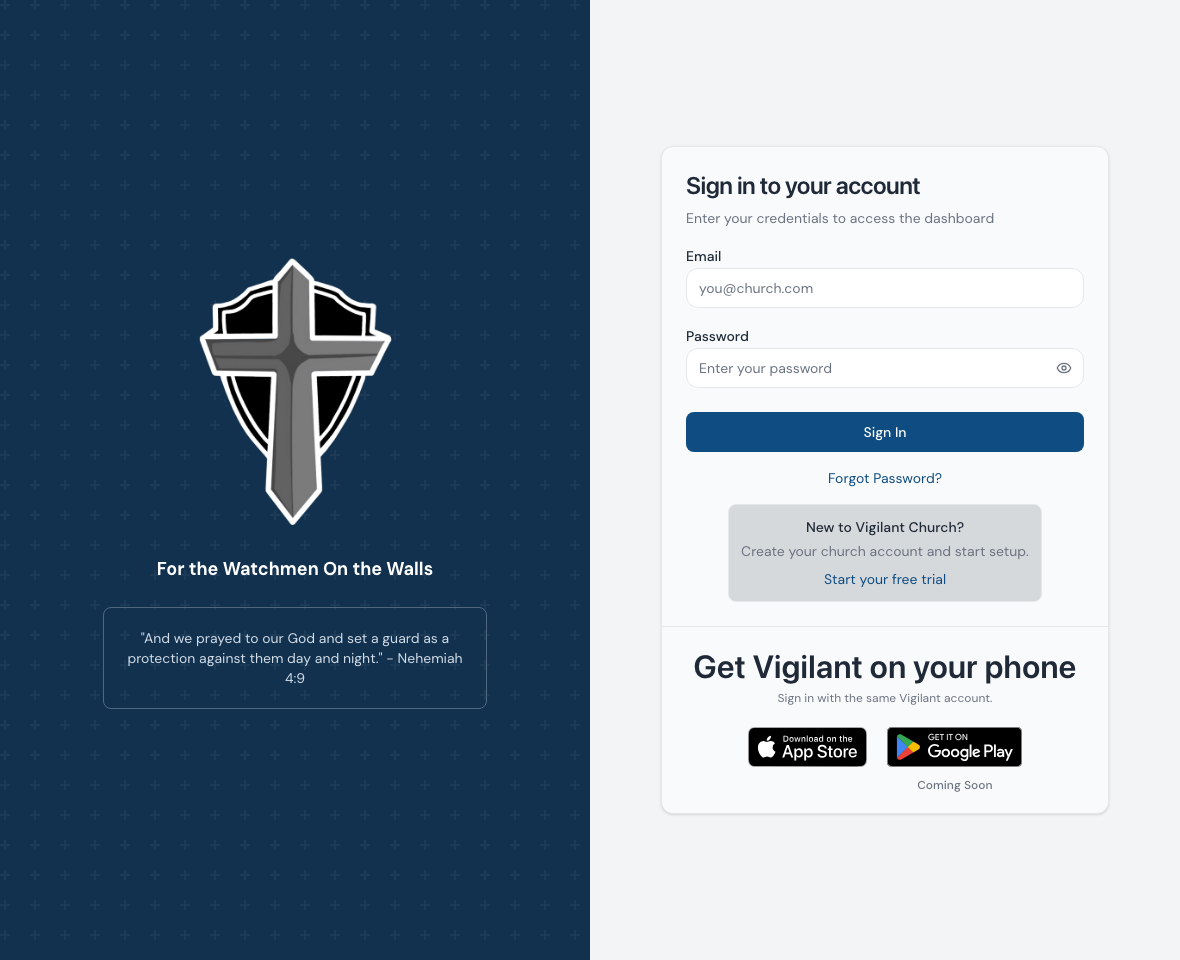
Open Sign in and use the email address that received your invitation. Complete any pending invitation before expecting the church to appear. Use your existing Vigilant password when accepting an additional membership.

Example shown with fictional demo data. View full-size screenshot.
Reset a forgotten password
Select the password-recovery option on the sign-in screen, enter your account email and follow the newest reset message. Check spam or junk if it does not arrive. After setting the new password, return to sign-in and complete MFA if required. Resetting a password does not create or restore a church membership.
Complete MFA
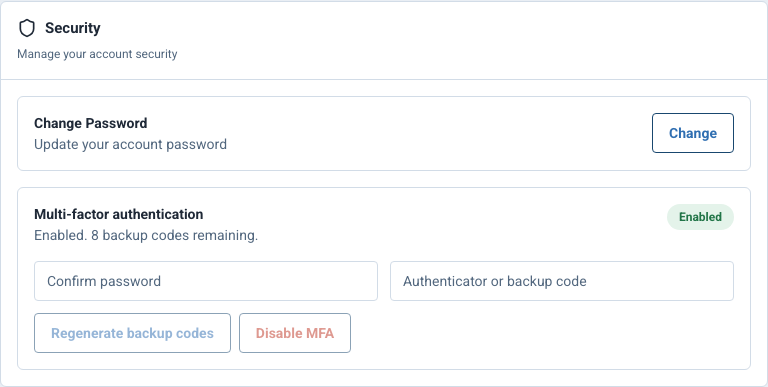
Use the current code from your enrolled authenticator. If you cannot access it, use an unused backup code through the offered recovery option. Keep backup codes private. Contact Support if both methods are unavailable; identity and authorization must be checked before account recovery. A church administrator should not ask you to send them your password or MFA code.

Example shown with fictional demo data. View full-size screenshot.
Switch church or campus
Use the church selector when multiple memberships are available. On the web, the campus selector is in the shared header on supported operational pages. Choose an available campus and confirm it before reporting an incident, replying in Chat or changing a member. Some pages allow All Campuses; actions such as starting a checklist require a specific campus. Switching context changes the records and permissions that apply.
If a church is missing, ask its administrator to check the invitation address, accepted membership and whether access was suspended. A campus filter does not grant membership in that campus. If an invitation was resent, use the newest email.
When to contact Support
Ask your church administrator about assigned roles, campuses and invitations. Contact Vigilant Support for unresolved sign-in, MFA recovery or an unexpected access error after the administrator has confirmed your membership. Provide the church name, account email and error text without account secrets.
If password recovery asks you to wait
Follow the wait time shown on screen before requesting another message. Web, iPhone and Android share recovery limits, so switching apps does not bypass the cooldown. You can still use a valid reset link already received or sign in with your current password.
If the web form cannot verify your request, restore your connection and try again later. A generic success message does not confirm whether an address has an account. Check your invitation address and spam folder, then contact Support if recovery remains blocked. Never forward a reset link or code to another person.