Support Tickets
Submit and Follow a Support Request
Open a support ticket, provide useful diagnostics, and continue the conversation in your ticket history.
Use a support request for product questions and problems. For an immediate safety emergency, follow your church's emergency response and communication procedures.
Submit a request
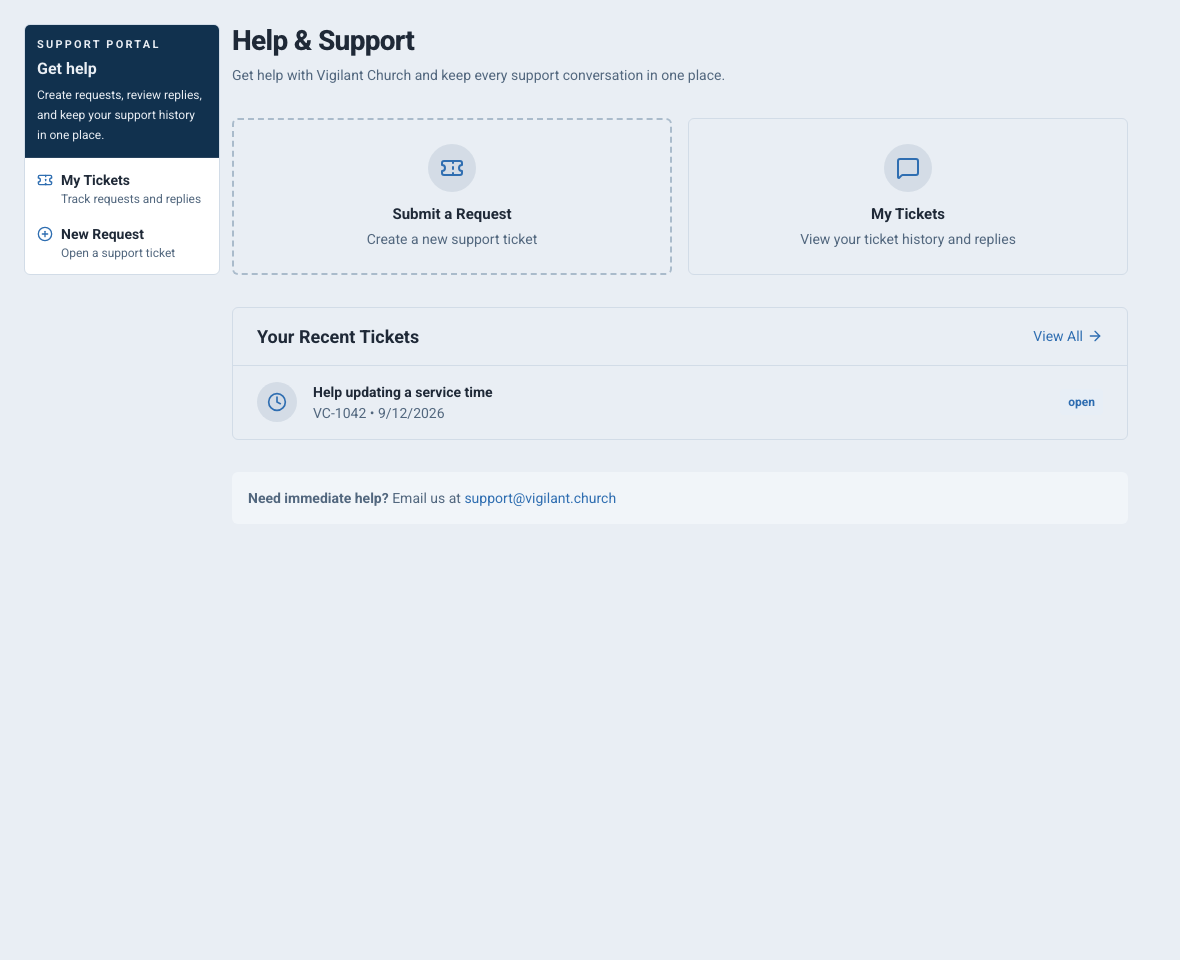
- In the web app, open your profile menu in the header and choose Help & Support.
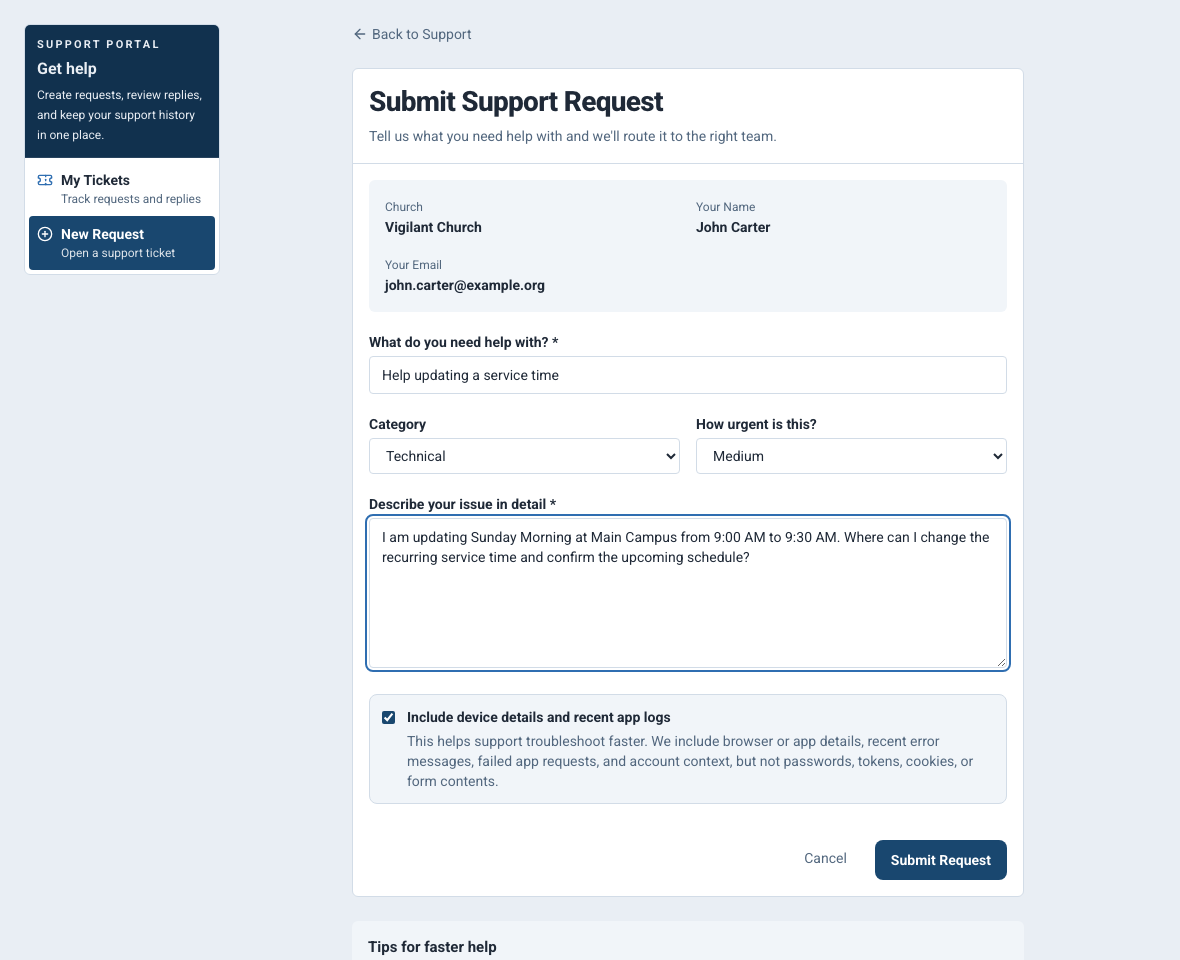
- Select New Request and enter a short summary of the problem.
- Choose the available category and priority that best describe its effect on your work.
- Describe what you were trying to do, what happened, and what you expected.
- Submit the request and confirm that its ticket detail page or success message appears. Keep the ticket number.
On iPhone or an Android test build, open Support from the app menu and use the new-request control. Mobile labels can vary by version.

Example shown with fictional demo data. View full-size screenshot.
Include useful details
Provide the church name, affected feature, approximate time and timezone, browser or phone model, app version, visible error text and steps already tried. Describe whether one person or several people are affected. Include a screenshot only after removing private information that is not needed to investigate.
Never include a password, MFA or backup code, payment-card details, an invitation link, or unnecessary incident or personnel records. Support may have diagnostic context attached to the request; you do not need to copy technical identifiers from another account.
Follow the conversation
Open My Tickets to find the request. Review its status and replies, then reply in the same ticket with requested information or a clear correction. Check the ticket directly even if you expect an email or device alert; notifications are not a substitute for the saved conversation. Avoid creating another ticket for the same unresolved issue.
If you cannot sign in, use the public support center or email support@vigilantchurch.com. Include your church and contact email, without sending account secrets.

Example shown with fictional demo data. View full-size screenshot.