Team Notices & Notifications
Read and Send Team Notices
Read announcements, publish notices to the intended audience, and understand inbox and device notification behavior.
Team Notices contains announcements from authorized leaders. Chat is for conversations. The notification bell or Inbox collects alerts and links to the relevant notice, conversation or other record.
Read a notice
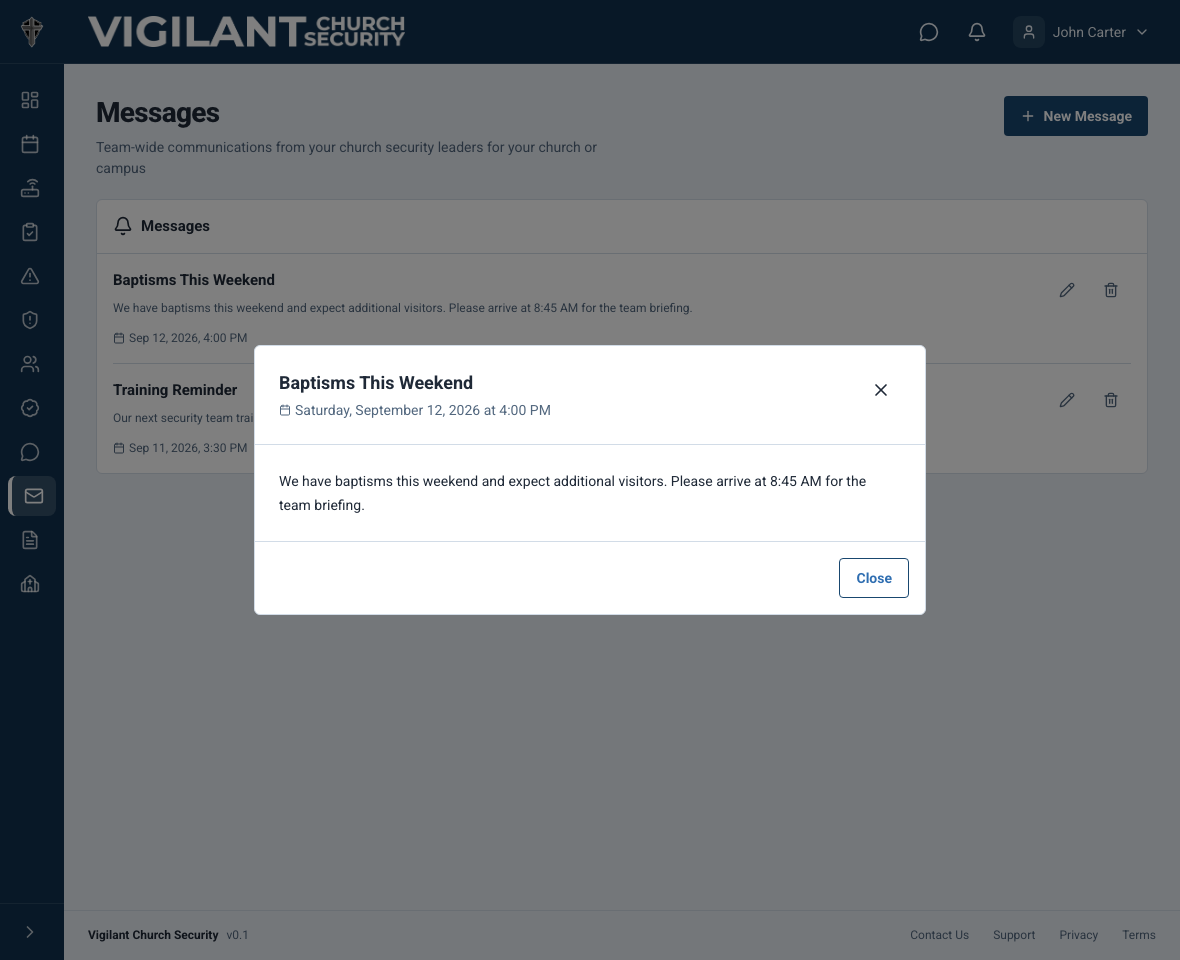
- Open Team Notices in the web navigation. Older app versions may label this area Messages.
- Open a notice to read its full instructions, priority and author information.
- Follow any linked record only after confirming that you are in the correct church and campus.
- Complete any requested operational follow-up. Reading a notice does not automatically complete a checklist or record attendance.

Example shown with fictional demo data. View full-size screenshot.
Create a notice
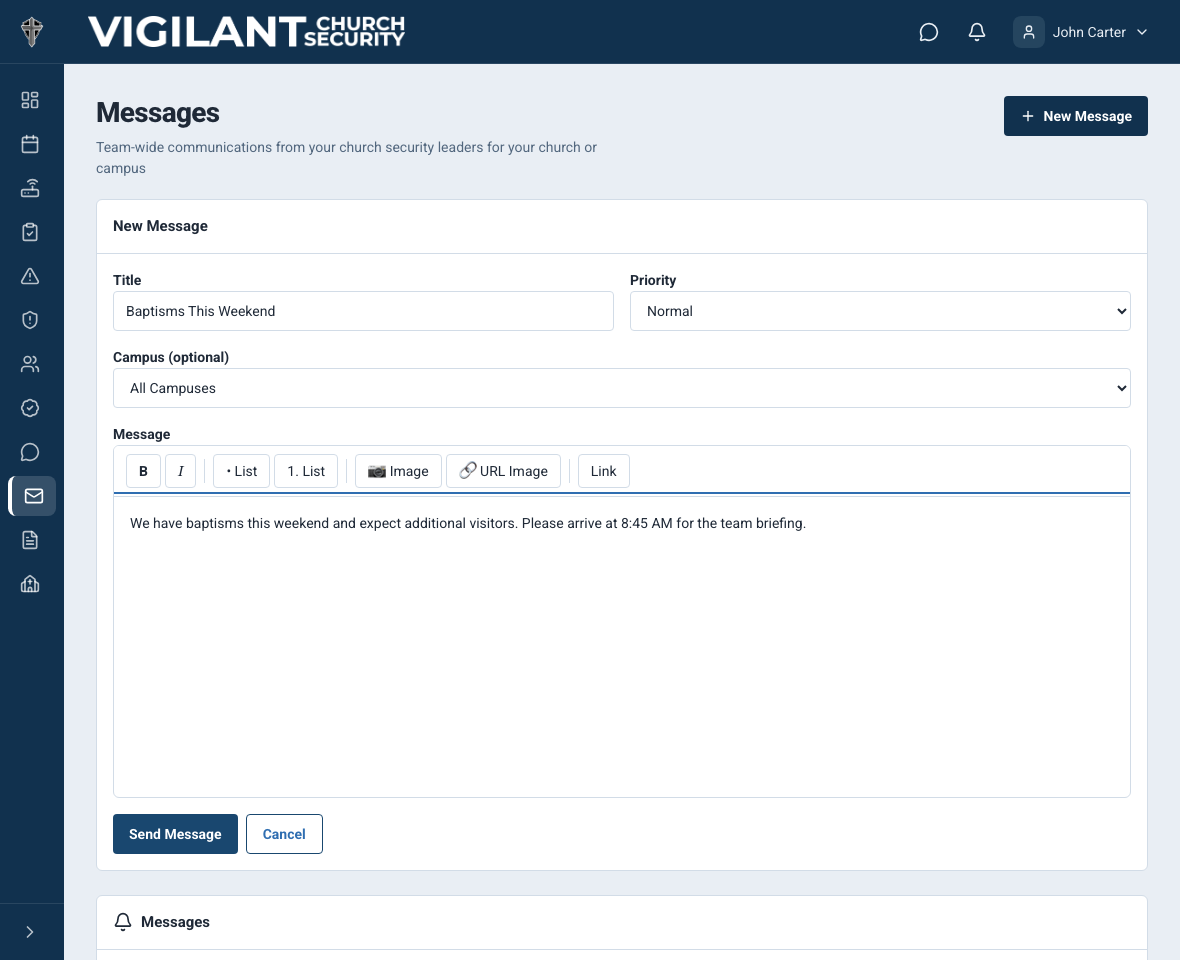
If you have Manage Messages permission, open the notice composer. Enter a title and message, choose priority and review the audience. Use the available campus, role or individual-recipient controls to reach the intended people. Review separate Church Admin access when targeting Admins; a member can have both an operational role and administrative access. Save or send, then confirm the resulting notice.
Priority communicates urgency; it is not a guarantee of immediate delivery or response. Follow your church's emergency communication procedure for urgent incidents.

Example shown with fictional demo data. View full-size screenshot.
Use the inbox
Open the notification bell or Inbox to review alerts. Select an alert to open its linked item. Marking an alert read changes your unread state. Dismissing it removes it from your active notification view; it does not delete the underlying notice, incident or conversation.
Device pushes depend on your notification preferences, device permissions, network connection and app version. Use the in-app notice or inbox as the place to confirm the actual content.
Missing or inaccessible notices
Check your church selection and campus membership. A link can stop opening if the underlying item was removed or your access changed. Ask the author to check the notice's audience, or submit a support request with the notice title and time without copying sensitive contents.
Training invitations and reminders
Training alerts link to the relevant event. Open it to review the schedule and choose your RSVP; reading or dismissing an alert does not submit an answer or record attendance. Upcoming timed events can generate 24-hour and 2-hour reminders. A No response suppresses those reminders for that schedule, and changing the training date or start time can request a fresh response.
Push delivery depends on device settings and connection. Review the event in the app if a device alert is missing. See Respond to Training Invitations.