Setup
Complete Guided Church Setup
Follow the six guided setup steps, finish required church details, activate locations and services, and send team invitations when ready.
Guided setup helps a new church enter its required details, prepare locations and services, upload procedures, and invite its team. The six steps are Your church, Locations, Services, Procedures, Team, and Ready. Services, procedures, and team details are optional and can be completed later.
This guide is for the administrator completing a new church's setup in the web app. If your church opens the Dashboard without guided setup, use Church Admin to maintain its details.
Before you start
Follow Create a New Church Account to register and open the newest verification email. Confirm the church and email, then create a password for a new identity or confirm your current password and MFA for an existing account. Select Continue to Church Setup. If already active, use Sign in to Church Setup and select the intended church.
Activation starts the new church's 24-hour billing setup window. Completing guided setup does not complete Checkout or start the subscription trial. Follow the deadline and instructions shown in Billing; resending an activation link does not restart the window.
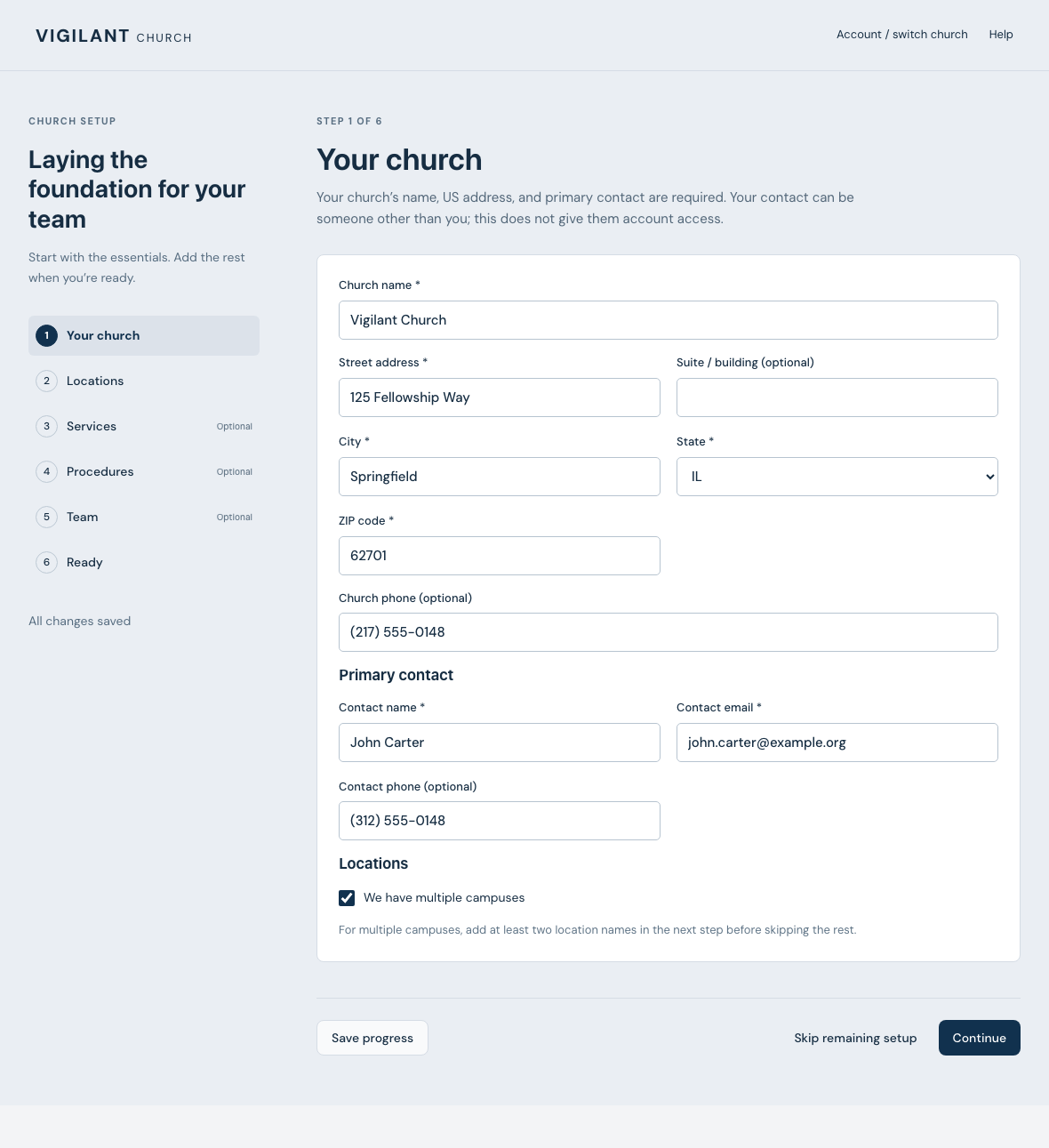
1. Your church
- Review Church name and enter the church's US street address, city, state, and ZIP code.
- Enter the primary contact's Contact name and Contact email. Church phone and Contact phone are optional, separate fields.
- Select We have multiple campuses if applicable, then choose Continue.
The primary contact can be someone other than you. Entering their details does not create an account, grant Church Admin access, or transfer ownership.

Example shown with fictional demo data. View full-size screenshot.
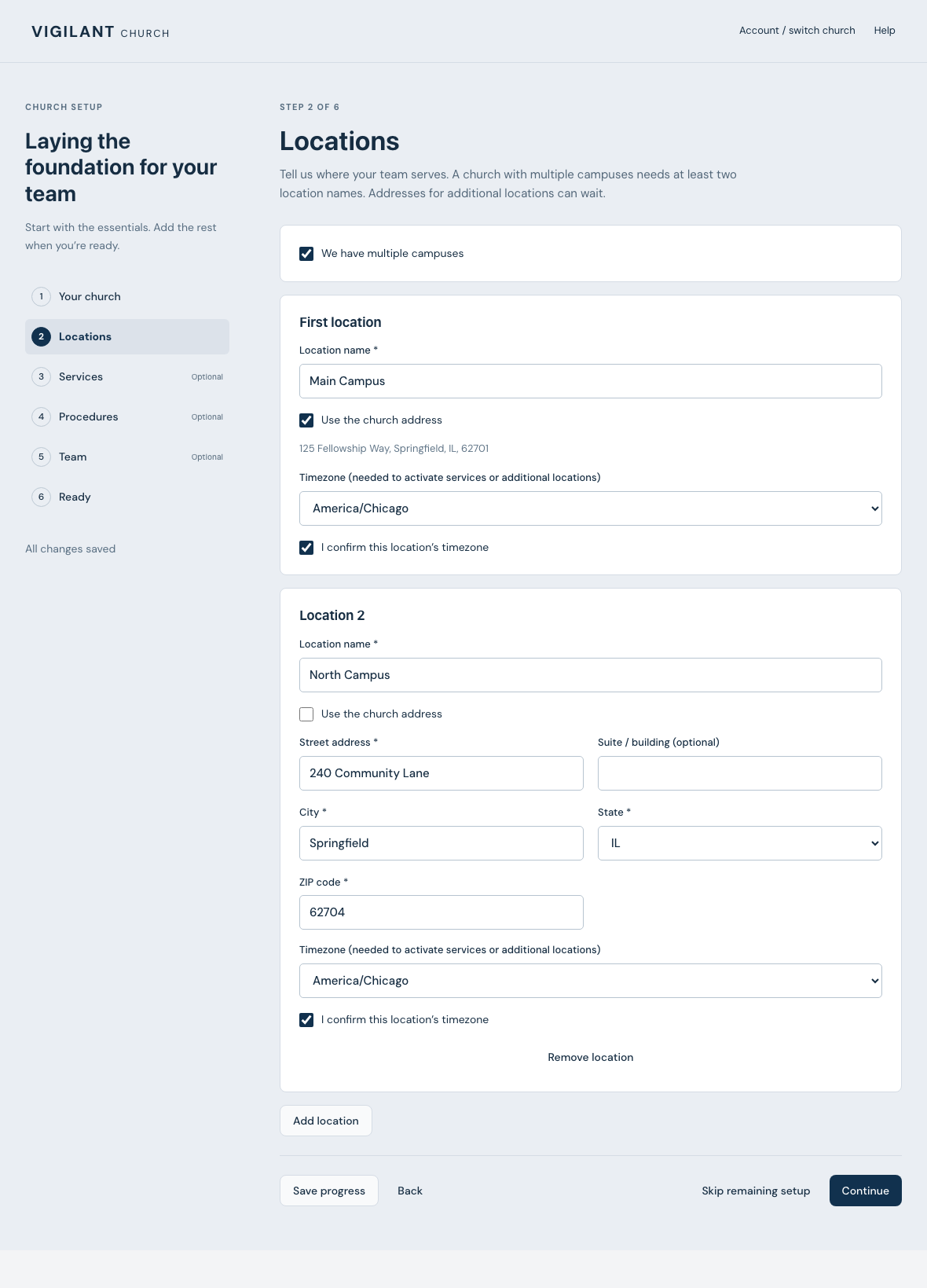
2. Locations
- Review the first Location name, initially Main Campus.
- Keep Use the church address selected when appropriate, or enter that location's address.
- For multiple campuses, choose Add location and enter at least two location names in total. Every location you add needs a name before you can finish or skip the remaining setup. Additional locations' addresses can wait.
- When ready to use a location for services, choose its Timezone and select I confirm this location's timezone.
A complete address and confirmed timezone are needed to activate an additional location or its services. Additional locations remain saved drafts until you activate them on Ready after completing the required setup. Activation also depends on your plan's campus capacity.

Example shown with fictional demo data. View full-size screenshot.
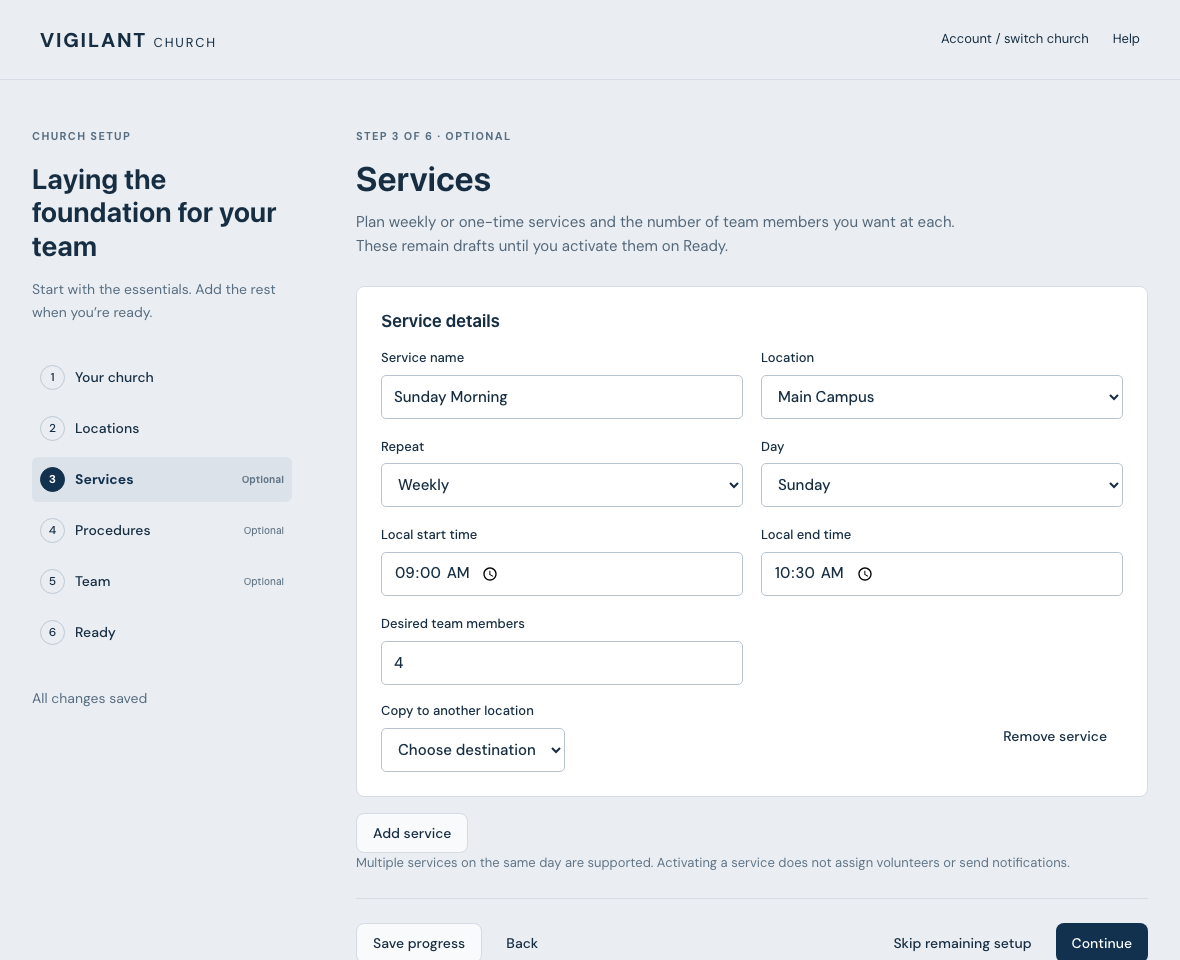
3. Services — optional
Choose Add service, then enter:
- Service name and Location.
- Repeat: Weekly with a Day, or One time with a Service date.
- Local start time and Local end time, using the location's timezone. The end must be later on the same day.
- Desired team members, as a positive whole number.
You can add multiple services on one day or use Copy to another location and review the copied details. Services remain drafts until you choose Activate service on Ready after completing the required setup. Their location must be active and ready, and scheduling must be enabled in Church Admin. See Add Service Times for Scheduling.
Activating a service does not assign volunteers or send notifications.

Example shown with fictional demo data. View full-size screenshot.
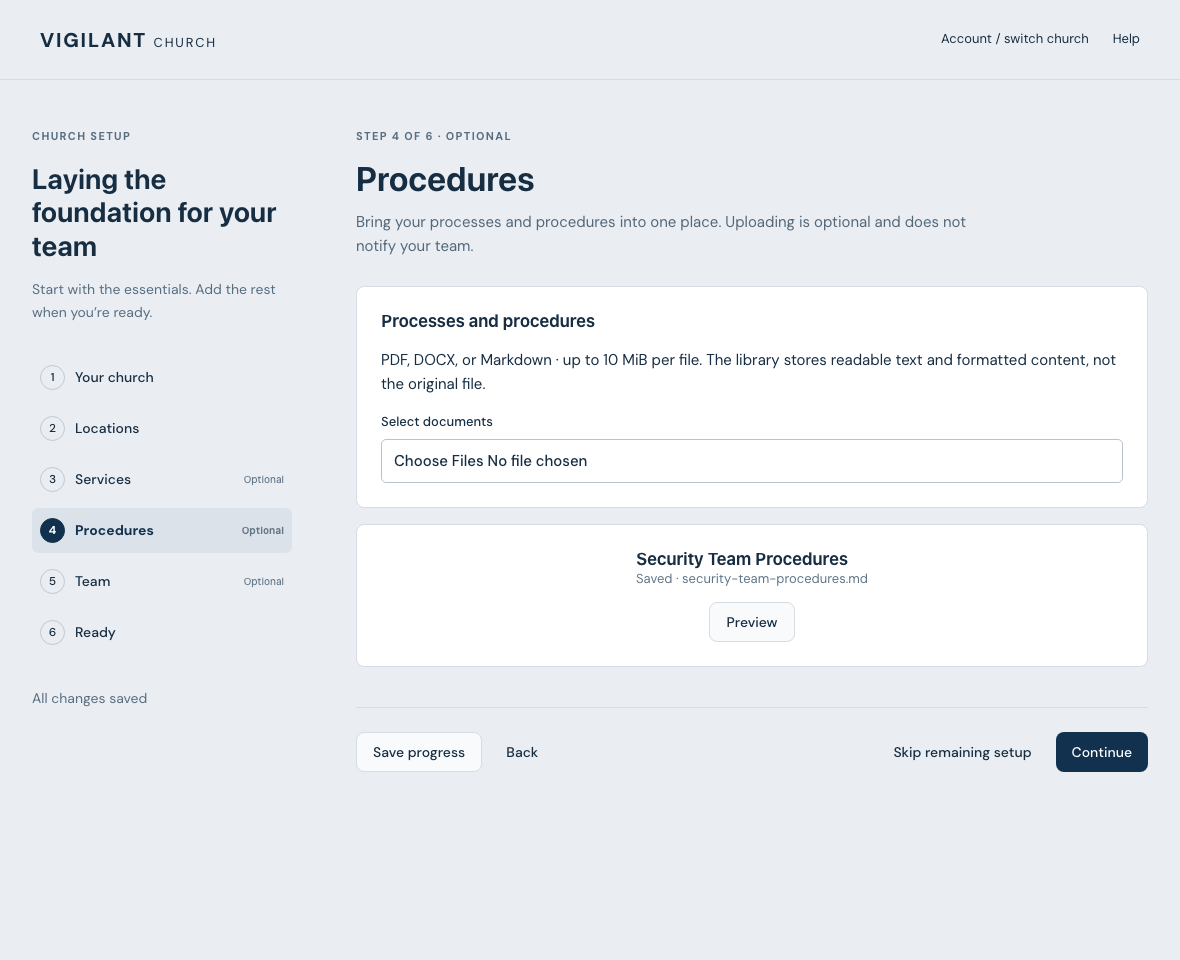
4. Procedures — optional
- Complete the required church details, then use Select documents to choose PDF, DOCX, or Markdown files.
- Review each Document title and choose Upload document. Follow the file-size limit shown on screen.
- Wait for Saved, then choose Preview to check the converted content. Saved documents also appear on Ready with their title, original filename, and a Preview button.
Uploads save readable text and formatted content to Procedures; the library does not retain the original file. Keep your source copy. Scanned or image-only PDFs may need a text-based version before upload. If you leave before an upload finishes, you may need to select that file again. See Upload and Review Church Procedures.

Example shown with fictional demo data. View full-size screenshot.
5. Team — optional
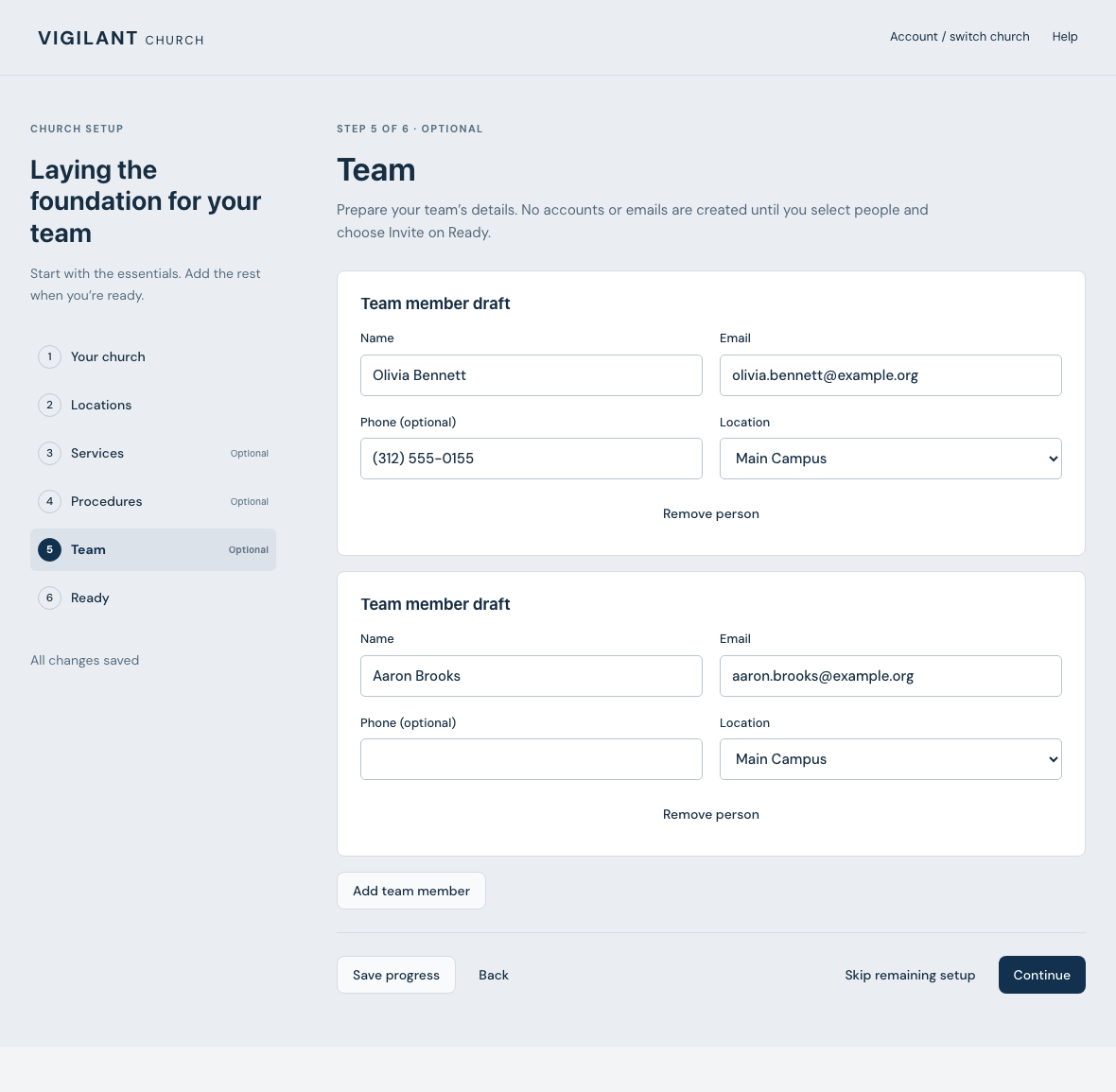
Choose Add team member and enter each person's Name, Email, and Location. Phone is optional. Saving these details prepares a team member draft; it does not create their membership or send an email.
You will select invitation recipients on Ready after completing the required setup. Invitations from guided setup give Team Member access at the selected location, without Church Admin access. Use Team management to manage other roles and administrative access.

Example shown with fictional demo data. View full-size screenshot.
6. Ready: finish the required setup
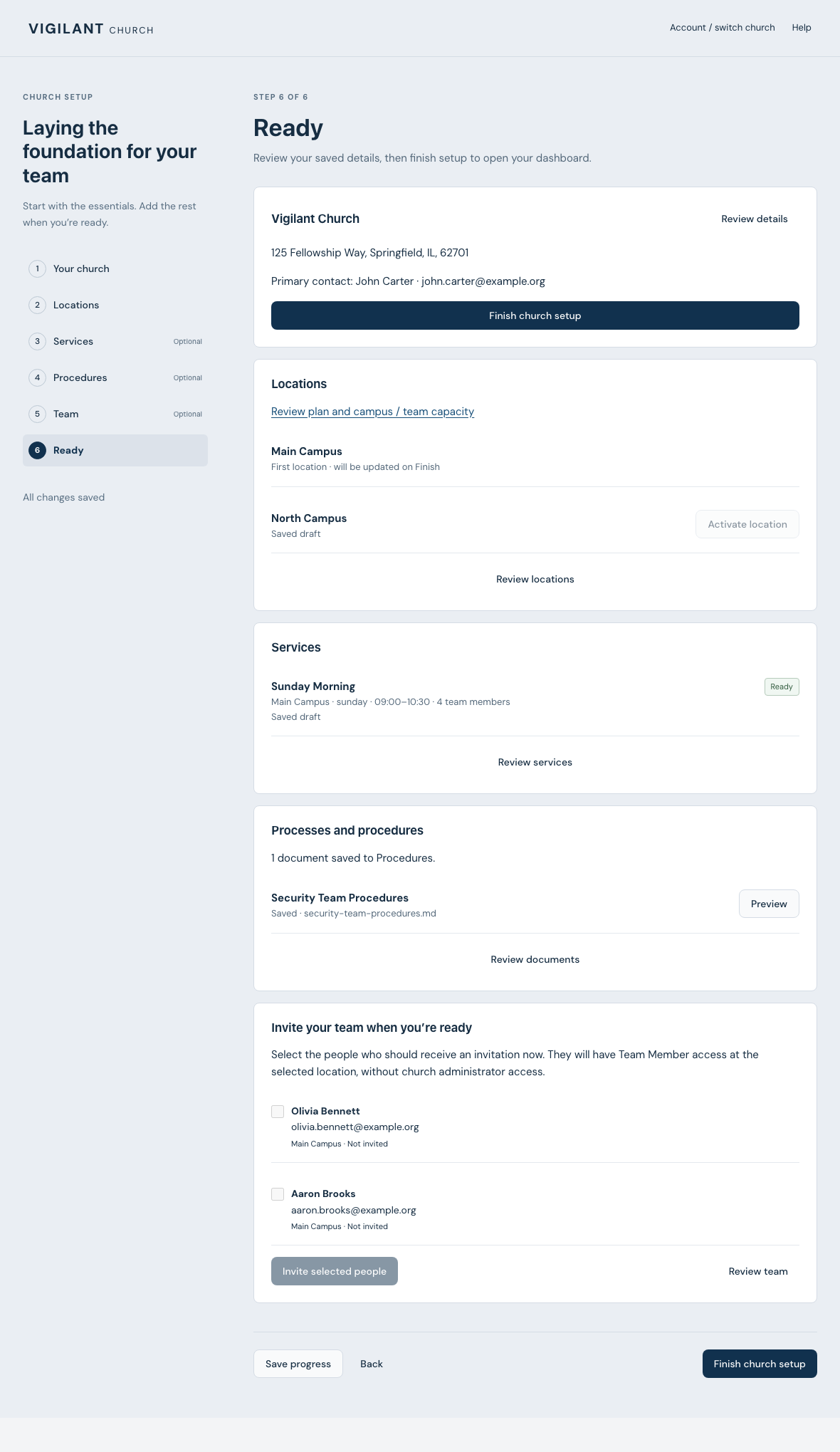
Review the church summary and any missing-information messages. Choose Review details, Review locations, Review services, Review documents, or Review team to return to a step.
Choose Finish church setup when the required details are complete and billing allows the action. This saves the church profile and first location, confirms completion, and opens the Dashboard. Additional locations and services remain drafts, and invitations remain unsent.
To defer optional work sooner, choose Skip remaining setup from an earlier step. It requires the same essential church details and location names. It completes the required setup and takes you to Ready, where you can choose Open dashboard or continue optional work.

Example shown with fictional demo data. View full-size screenshot.
Resume optional setup and send invitations
On the Dashboard, choose Continue optional setup. On Ready:
- Use Activate location for each additional location after completing its address, timezone confirmation, and any plan-capacity requirements.
- Use Activate service once its details and active location are ready. If prompted, enable scheduling in Church Admin first.
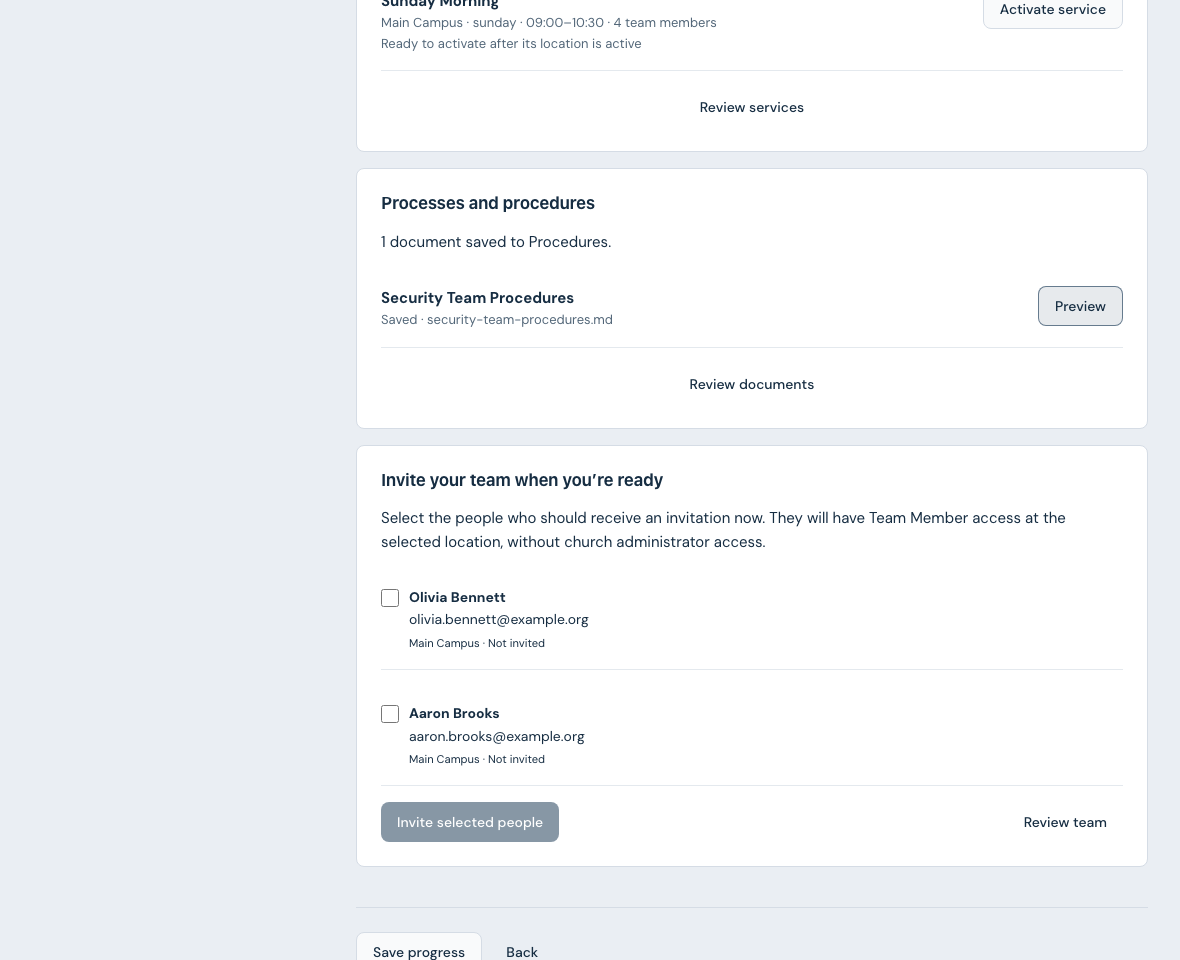
- Under Invite your team when you're ready, review each person's name, email, location, and status. Nobody is selected by default. Select the people you want to invite and choose Invite with the selected count.
- Check for Invitation sent. If delivery needs checking, follow the displayed retry instructions for that person; successful invitations are saved.
Once a location or service is active, maintain its operational details in Church Admin. Manage invited people in Team. Saved procedures are available in Procedures.

Example shown with fictional demo data. View full-size screenshot.
Save progress or resolve a blocked step
- Leaving setup: changes save automatically. Use Save progress and wait for All changes saved before leaving. Complete or retry any pending uploads separately.
- Finish or Skip is unavailable: review the required church name, US address, primary contact name and email, and location names. Multiple-campus churches need at least two named locations. Check any billing message too.
- Billing restriction or capacity limit: choose Review billing or Review plan and campus / team capacity, complete the requested action, and allow the confirmed billing status to refresh. Your drafts remain available to edit.
- Another tab changed setup: review your unsaved edits before choosing Reload saved version (discard local changes). This replaces local edits with the saved version.
- Activation link missing or expired: use Recover your activation link. Avoid registering the same church again.
- Still blocked: use Help and include the church name, step, and error message. Never send a password, MFA code, or activation link.