Setup
Add Service Times for Scheduling and Coverage
Create recurring campus service times that automatically appear on weekly schedules with the correct coverage target.
Service times are recurring schedule templates for a campus. After you add one, Vigilant automatically shows a service roster card on the matching weekday every week. You do not need to recreate the same regular service on each weekly schedule.
Automatically add a regularly scheduled service
- Open Church Admin from the left navigation.
- In Campuses, select the campus where the service is held, then choose Manage Campus.
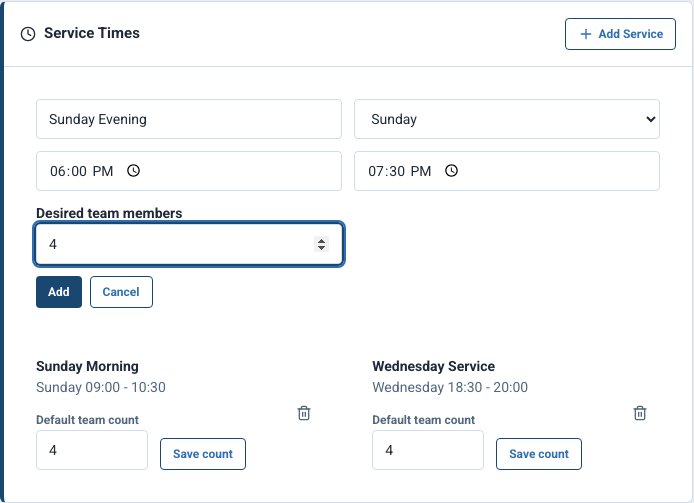
- Scroll to Service Times and select Add Service.
- Enter a descriptive service name, such as Sunday Morning, Wednesday Service, or Saturday Worship.
- Choose the day of the week when the service regularly occurs.
- Enter the normal start and end times.
- Enter Desired team members. This becomes the service’s Default team count and tells Vigilant how many people are needed for coverage each week.
- Select Add. The service appears in the campus Service Times list.
- Open Schedules and move to the current or a future week. A roster card is created automatically on every matching weekday, at the saved time, for the selected campus.
The recurring service creates the weekly roster card and coverage target automatically. It does not automatically assign team members. Use the roster card to assign people or allow eligible team members to volunteer.

Example shown with fictional demo data. View full-size screenshot.
Change the default team count
- Return to Church Admin, open the campus, and scroll to Service Times.
- Enter the new number under Default team count for the service.
- Select Save count.
- Return to Schedules and confirm the service roster card shows the updated coverage target.
Changing the default team count adjusts how many people the roster shows as needed. Existing team assignments remain visible.
Add every regular service
- Add service times separately for each campus.
- Create a separate service time for each distinct start time, even when several services occur on the same day.
- Set the default team count independently for each service based on its coverage needs.
Use a one-time service for special events
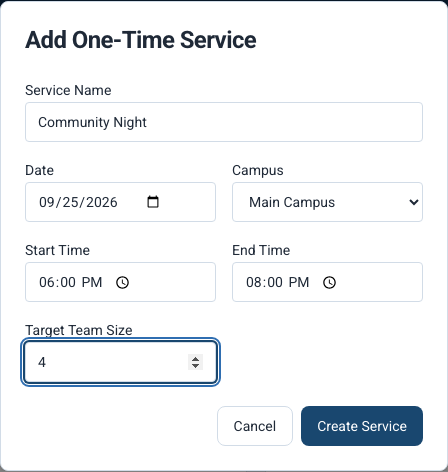
Do not create a recurring campus service time for a holiday service, concert, conference, or other event that happens only once. Open Schedules, select Add One-Time Service, and enter that event’s date, time, campus, and target team size.

Example shown with fictional demo data. View full-size screenshot.
If a recurring service does not appear
- Confirm Schedules is filtered to the same campus where the service time was created.
- Move to a week that contains the saved weekday.
- Return to the campus Service Times section and confirm the weekday, start time, and end time are correct.
- Refresh Schedules after saving a new service time or changing the default team count.
If the campus uses Planning Center for schedules, complete the Planning Center connection and location mapping before relying on imported service data.
Confirm the service is ready for scheduling
A service saved in optional setup can require completion or activation before it appears operationally. Confirm the campus, timezone and recurring or one-time details in Church Admin. Saving a service does not assign a team member.
If Scheduling is disabled, ask an authorized leader to review Scheduling Options. For a Planning Center-managed campus, maintain the service in the system that owns its scheduling data rather than creating a conflicting local copy.