Schedules
Volunteer for an Open Service
Request an open service assignment and understand what happens while a scheduler reviews your request.
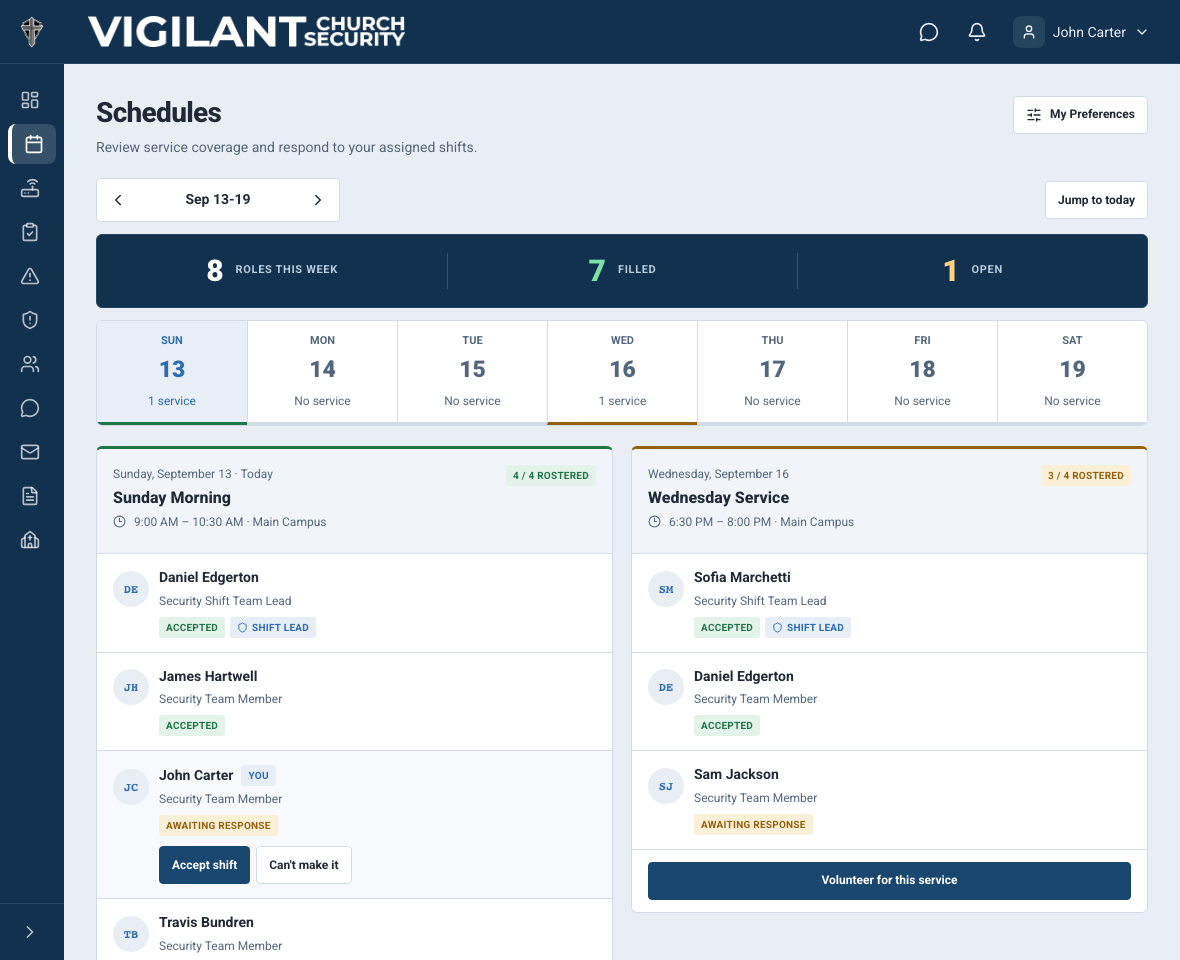
When your church needs additional coverage, eligible team members can volunteer for an open service from the roster card. Volunteering sends a request for review; it does not add you to the roster immediately.
Request an open service
- Open Schedules.
- Navigate to the week and find the service where you want to serve.
- Select Volunteer for this service.
A confirmation states that the request was sent for review. The card then shows that your volunteer request is pending approval.

Example shown with fictional demo data. View full-size screenshot.
What happens next
A scheduler with Create Schedules or Edit Schedules permission reviews the request on the same service card.
- If approved, you are added to the service and the assignment is recorded as accepted.
- If declined, the request closes and you are not added to the roster.
- While a request is pending, the system prevents a duplicate request for the same service.
Who can volunteer
Volunteer access depends on your church's role permissions. By default, the Security Team Member role can volunteer. Church administrators can change role permissions, so your church's setup may differ.
You cannot volunteer when you are already assigned, when a request is already pending, or when your role is excluded from volunteering. Pastoral & Ministry Staff cannot volunteer for security schedules.
Planning Center services
- Two-way Planning Center campuses can support volunteer requests in Vigilant Church Security.
- One-way Planning Center campuses are read-only. Use your church's Planning Center process to volunteer or request an assignment.
If the volunteer button is missing
- Confirm that you are not already on the service roster.
- Look for a pending volunteer request notice on the card.
- Ask an administrator to confirm that your role has Volunteer For Schedules permission.
- Confirm that the church has Scheduling enabled and that the service is not a one-way Planning Center service.
Church Admin access and eligibility
Volunteering follows the person's operational role, campus access and effective permission. Adding Church Admin access does not make a Pastoral & Ministry Staff member eligible for a security-service assignment. If a request fails, reopen the service and check whether it is already pending or you are already assigned before submitting again.