Schedules
Use Schedules and Respond to Assigned Shifts
Find service assignments, understand roster cards, and accept or decline your own shifts.
Use Schedules to see when and where you are serving, who is on the roster, and whether your assignment still needs a response.
Open and navigate Schedules
- Open Schedules from the main navigation.
- Use the week controls to move to the previous, current, or next date range. Select Jump to today to return to the current date.
- Review the service cards for your campus. If a campus selector is available to your role, confirm that the correct campus is selected.
Read a service card
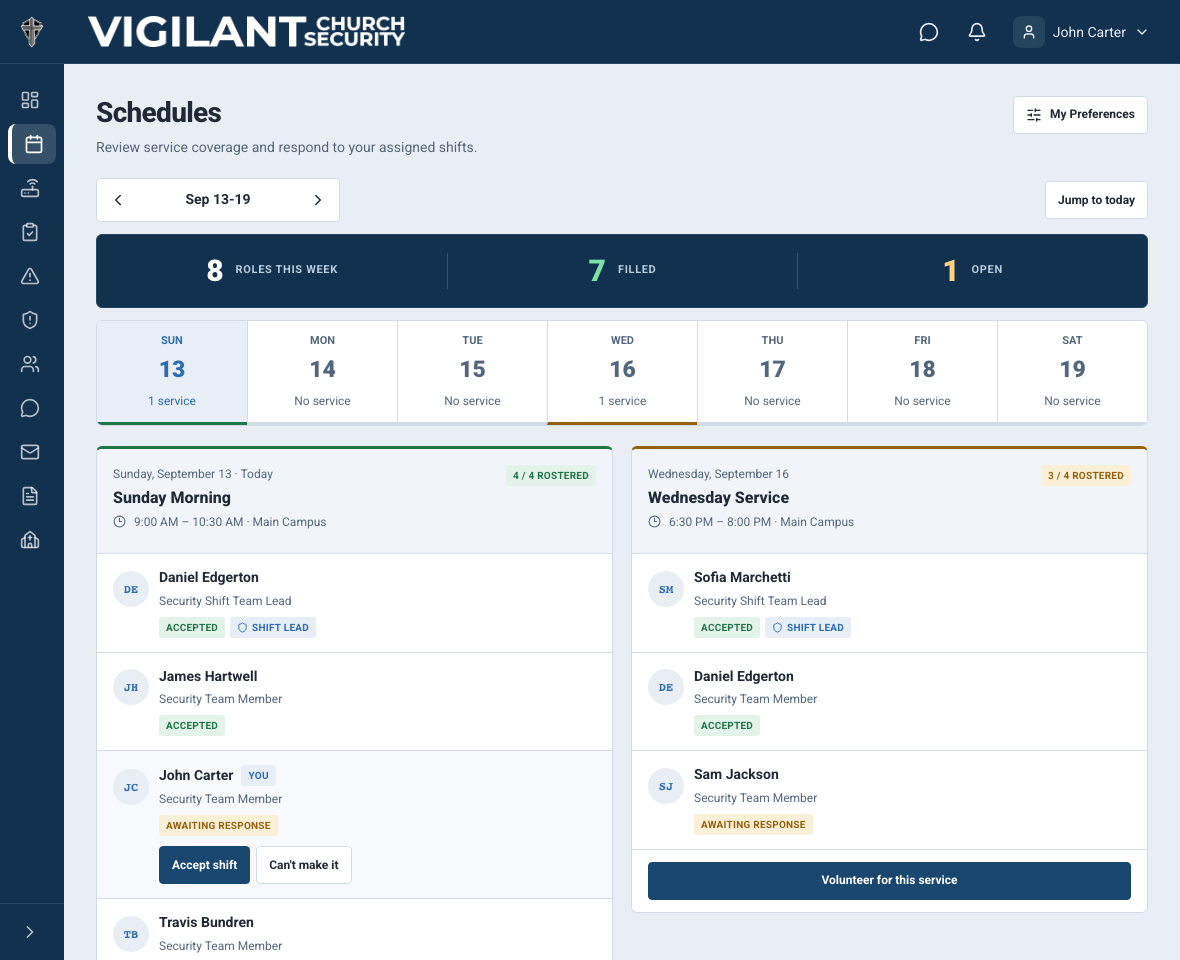
A service card can show:
- Service name, date, start time, end time, and campus.
- The target team size, rostered count, and open positions.
- Assigned team members, roles, and the designated shift lead.
- Assignment responses such as pending, accepted, or unavailable.
- A notice when you are blocked out for that date.
Select an assigned person's name when you need the contact details made available by your church, such as phone, email, or call sign.

Example shown with fictional demo data. View full-size screenshot.
Accept your assigned shift
- Find the service card that contains your assignment.
- Find your name on the roster.
- Select Accept shift.
Your response changes to Accepted. Leaders can see that the assignment is confirmed.
Decline an assigned shift
- Find your assignment on the service card.
- Select Can't make it.
Your response changes to Marked unavailable. If your availability changes and the assignment is still present, you can select Accept shift later.
You can respond only to your own assignment. Declining an assignment is different from declining a volunteer request; volunteer requests are reviewed by an administrator or scheduler.
Set scheduling preferences and block-out dates
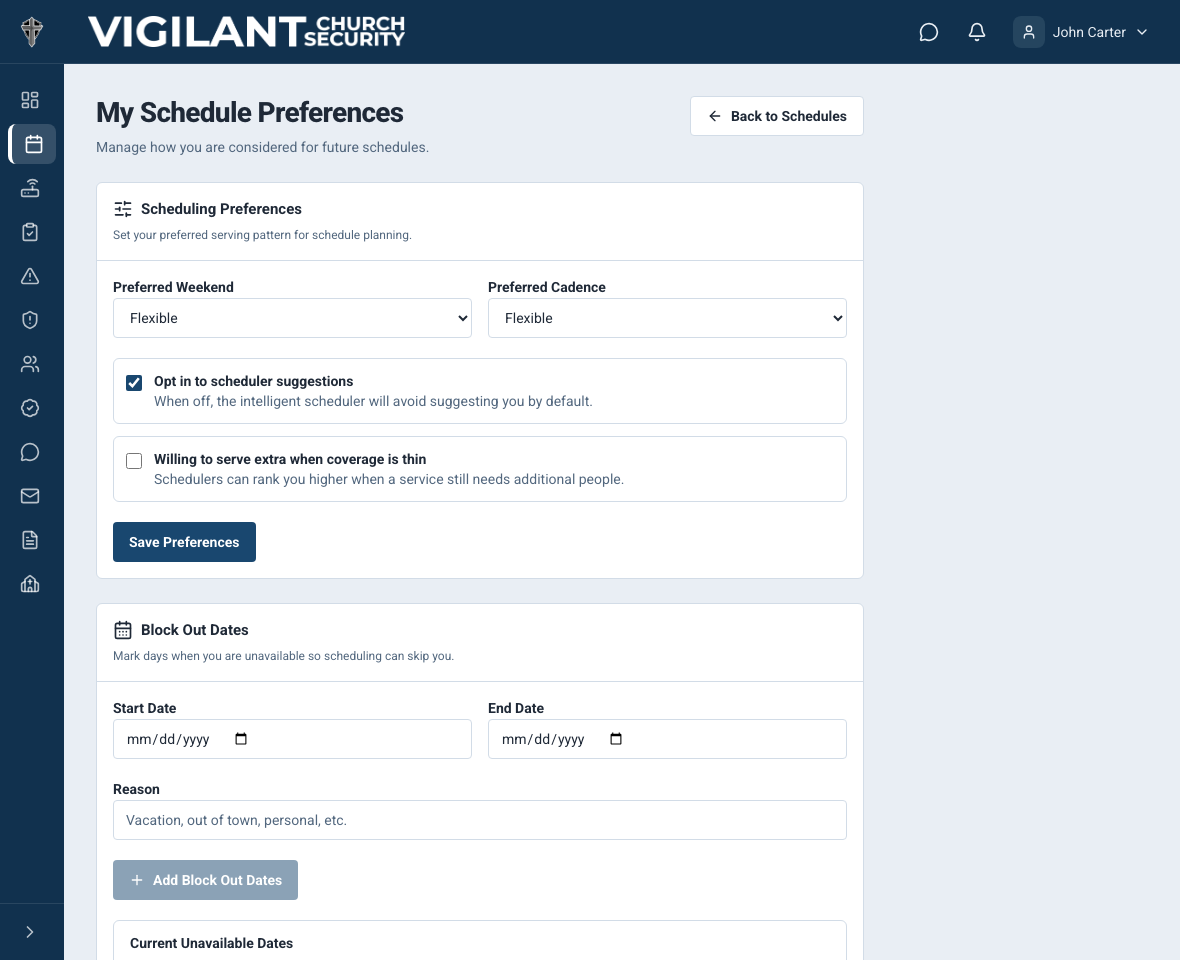
- From Schedules, select My Preferences.
- Choose your preferred weekend and serving cadence, then choose whether to opt in to scheduler suggestions or serve extra when coverage is thin.
- Select Save Preferences.
- For dates when you cannot serve, enter a start date, end date, and optional reason under Block Out Dates, then select Add Block Out Dates.
Turning off scheduler suggestions reduces Intelligent Scheduler recommendations; it does not remove an existing assignment. Use block-out dates for known periods of unavailability and respond to any assignment already on your schedule.

Example shown with fictional demo data. View full-size screenshot.
When response buttons are not available
- The assignment belongs to another team member.
- You are blocked out for that date.
- The campus uses one-way Planning Center scheduling. Respond in Planning Center instead.
- Scheduling is disabled for the church or your role does not have access to Schedules.
Planning Center schedules
For a one-way Planning Center campus, assignments are read-only in Vigilant Church Security. For a two-way campus, supported responses made in Vigilant can sync with Planning Center.
Use the same assignment on iPhone or Android
Open Schedule in the iPhone app or Android test build, select the service and use the response control available for your assignment. View Schedules and Participate in Assigned Shifts are separate permissions. For a campus using one-way Planning Center scheduling, respond in Planning Center. If a response fails, refresh the assignment before trying again. A pending volunteer request is not an accepted assignment, and accepting a shift does not check you in.
When staffing or service details are incomplete
An unspecified target or open-slot count does not mean a service is fully staffed. Confirm coverage with the scheduler. One-time and Planning Center services may have a specific date instead of a recurring weekday. Use the service's displayed date and time, and update an older mobile build if these services fail to load. Avoid creating a duplicate service to work around a loading error.