Teams
How to Add a Team Member
Send a team invitation with the correct role, campus and administrative access.
Use this short checklist for a routine invitation. For the full setup workflow, including profile details and Planning Center rules, see Invite Security Leaders and Team Members.
Invite the person
- Open Team in the web app.
- Select Add Member. If it is unavailable, ask a church administrator to review your team-management access.
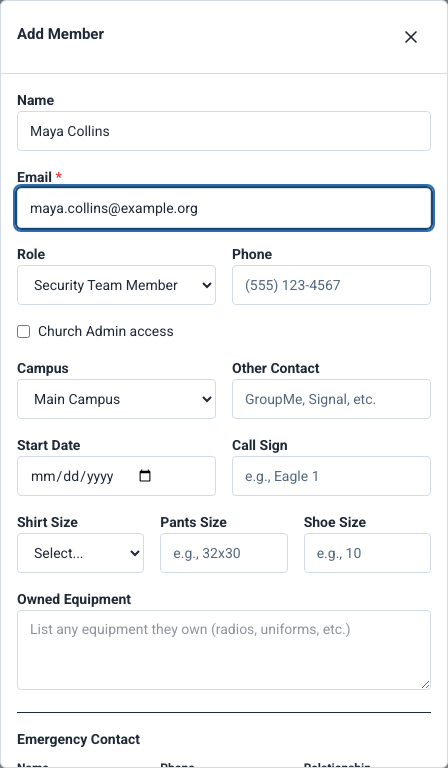
- Enter the person's full Name and Email.
- Select the operational Role and Campus that match their responsibilities.
- Review Church Admin access separately. Grant it only when the person needs to administer the church and you are authorized to grant it.
- Add any needed contact information, then select Add Member.
- Wait for confirmation and check the new member in Team.

Example shown with fictional demo data. View full-size screenshot.
After sending
The person must accept the email invitation. A new user sets a password; an existing Vigilant user confirms their current password and MFA when required. Ask them to follow Accept an Invitation.
Use the pending member's edit form to resend an invitation. Links expire after seven days; the recipient should use the newest message.
If the invitation is blocked
Confirm that the email is correct, the person is not already an active member, the campus is valid and the church has member capacity. For a one-way Planning Center campus, create the person in Planning Center and sync. A supported two-way addition also needs a mapped Planning Center position.
For a bulk first-time setup, review role permissions before inviting the whole team. Skills, certifications and training attendance are maintained separately from the invitation itself.
If this email already has a removed membership
Vigilant keeps the person's saved church profile after removal. An authorized administrator can enter the same email through Add Member and use Restore member or Send new invitation when offered. Recovery uses the saved profile, not the new form values. Open the restored profile to review the role and reassign a campus. Follow How to Remove a Team Member for the recovery steps.