BOLO
Getting Started with BOLO Alerts
Find current BOLO alerts, understand threat levels and statuses, and review the details your team needs.
A BOLO is a Be On the Lookout alert. It gives the team specific information about a person, vehicle, behavior, object or location that needs awareness. Review the full alert and follow your church's response procedures.
Find the right alerts
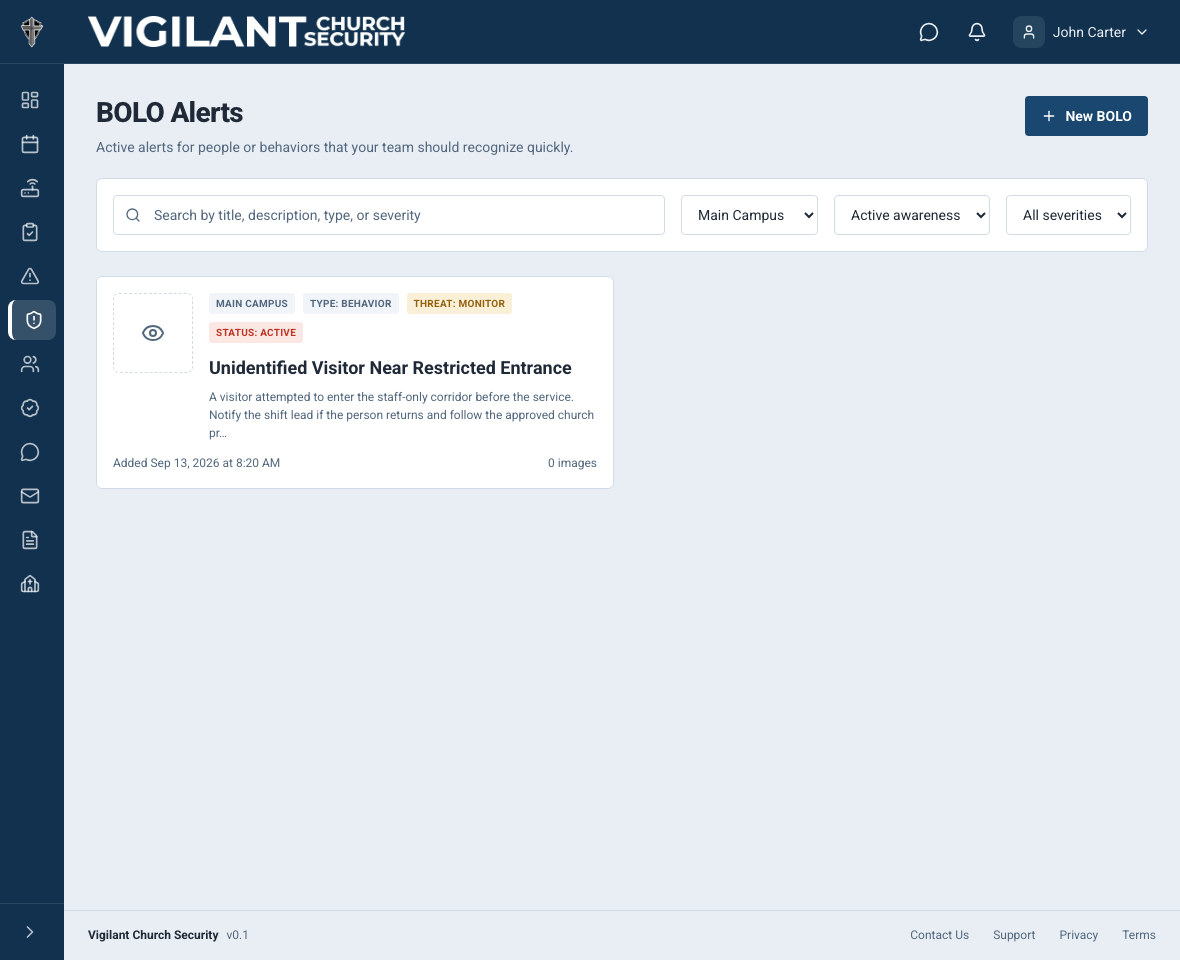
- Open BOLO from the web navigation or the iPhone or Android menu when available in your build.
- Confirm the campus scope.
- Use the status, threat and search controls to find the alert you need.
- Open an alert and read the full report, photos and current instructions.

Example shown with fictional demo data. View full-size screenshot.
Understand threat and status
The current web alert form uses four Threat Levels: Informational, Monitor, Elevated Concern and Immediate. These describe the concern recorded by the author; they do not replace your church's escalation process.
Statuses are Draft, Active, Resolved, False Alarm and Escalated. Active awareness includes Active and Escalated alerts that have not expired. An expired alert may remain available in history or a broader list without belonging in current active awareness.
Older app versions may show legacy severity labels. If a label or control differs, update the app and use the web record for the current complete report.
Read beyond the headline
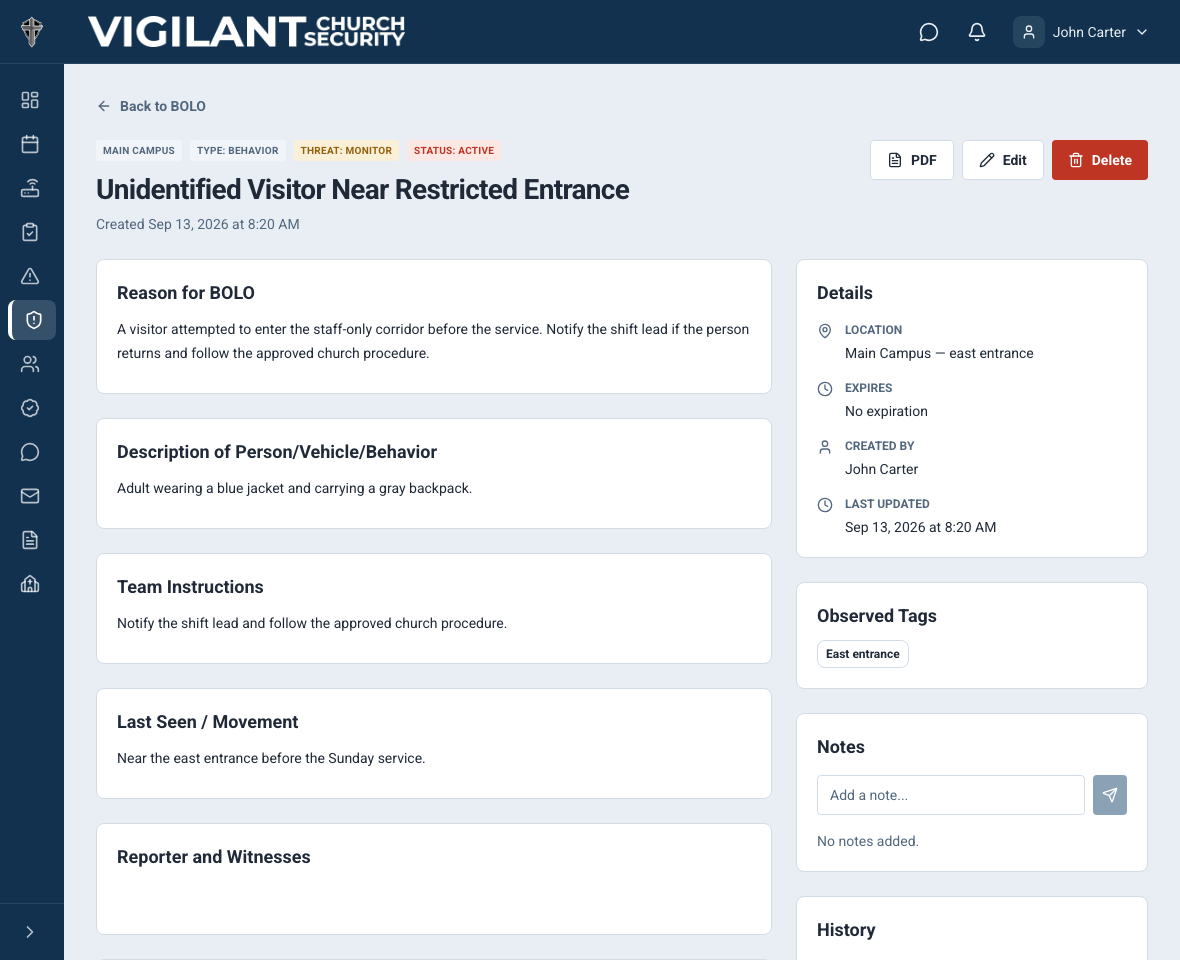
Review the identifying description, last-seen information, reason for concern and recommended response. Check photos, campus scope, expiration and recent notes. Distinguish observations from assumptions before sharing information with another team member.
Use the appropriate team conversation for coordination. For an immediate emergency, follow the church's emergency process; saving or viewing an alert does not summon emergency services.

Example shown with fictional demo data. View full-size screenshot.
Report a change
An authorized user can update the alert, add a note, change its status or record a resolution. Management depends on the church's effective BOLO permission and the user's access, not simply an Admin label.
If you cannot change an alert, contact the responsible leader. Share the alert title and what changed instead of creating a duplicate. See Manage BOLO Alerts for the authoring workflow.
If an alert seems missing
Clear search and filters and check the church and campus. The alert may be resolved, expired, archived or restricted to selected operational roles. Archived alerts are available only to eligible leaders; ordinary team members cannot recover them through a link or notification. Ask the responsible leader to review access. If a photo fails, reopen the record with a connection; a placeholder is not identifying evidence.