BOLO
Manage BOLO Alerts
Create BOLO reports, choose their audience, maintain notes and photos, and archive or restore alerts.
Use the web BOLO workspace to create and maintain your church's awareness alerts. The controls available to you depend on your effective Manage BOLO Alerts permission and church/campus access. Do not assume that management is restricted to people whose role is named Admin.
Create an alert
- Open BOLO and select New BOLO.
- Choose the Campus Scope and Type that match the situation.
- Enter a specific Title that the team will recognize.
- Choose a Status and Threat Level.
- Set an Expiration when the information is relevant for a limited period.
- Complete the report sections with the identifying details, observations, concern and response information needed by your team.
- Add appropriate photos, review the information, and save the alert.
- Open the saved record and confirm its scope, status, threat, expiration and photos.

Example shown with fictional demo data. View full-size screenshot.
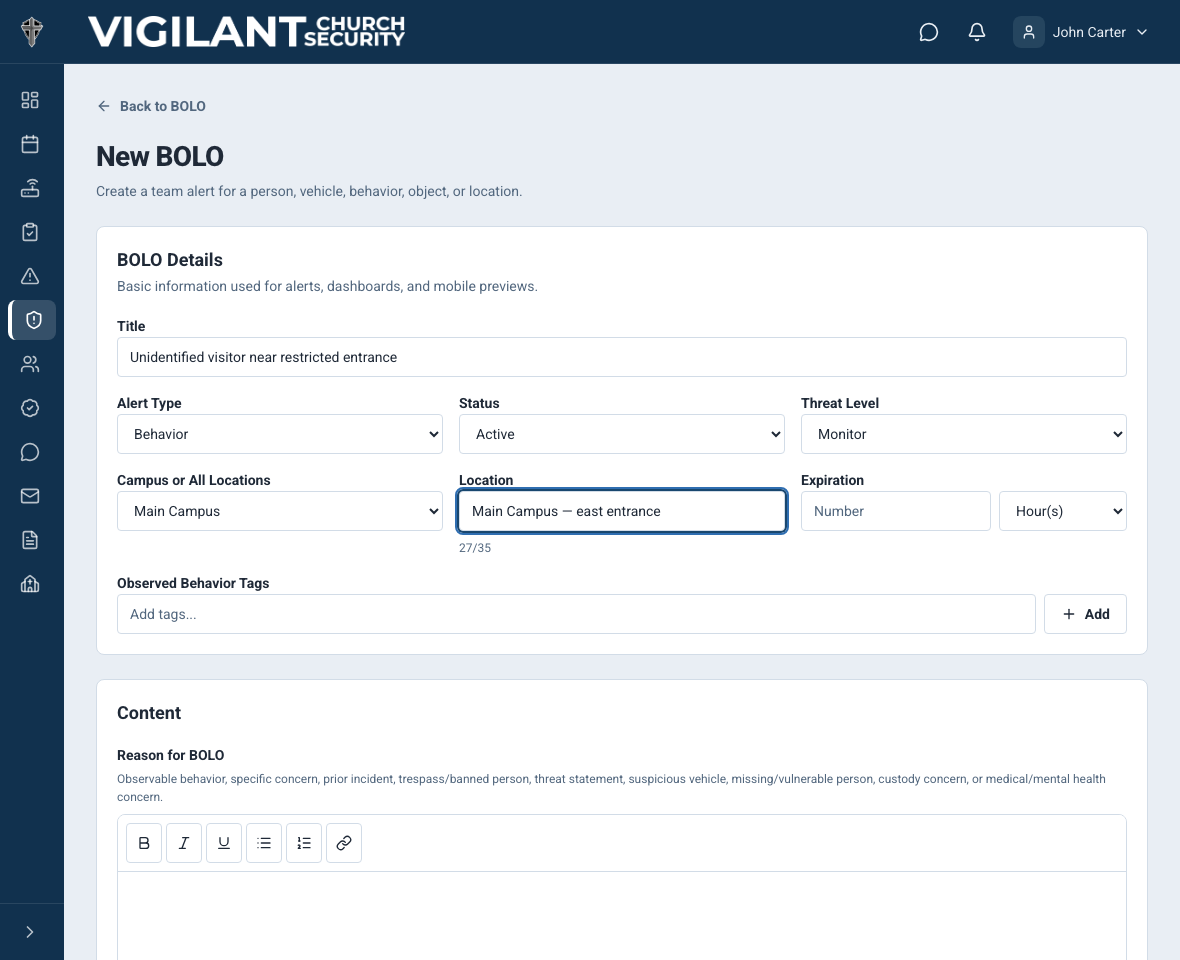
Choose status and threat deliberately
Draft is for an unfinished record. Active is a current alert. Escalated records an alert requiring escalated attention. Resolved records a concluded situation, and False Alarm records an alert determined not to represent the reported concern.
Threat levels are Informational, Monitor, Elevated Concern and Immediate. Use the level that matches your church's policy and the known facts. The selected level does not automatically replace direct notification of an on-duty leader.
Active awareness uses Active and Escalated status together with expiration. An alert can keep its saved status after its expiration has removed it from current active awareness. Review both fields when an alert is no longer relevant.
Write a useful report
The form provides formatted report sections rather than relying on one short description. Record observable identifying details, where and when the subject was seen, the reason for concern, and the response the church has authorized. Use the section prompts that apply to the alert type.
Keep observations distinct from witness statements or unverified information. Include only details needed for the church's response. Use photos that help identify the correct subject and that your church is authorized to retain.
Update and follow up
- Open the alert and choose Edit when the report needs correction.
- Update the relevant fields and save.
- Use Notes for later information and follow-up.
- Review History for recorded changes.
- When the situation ends, record the appropriate status and resolution details.
Reopen or extend an alert only after confirming that the information still applies. Avoid creating a second alert just to add a note or replace a photo.

Example shown with fictional demo data. View full-size screenshot.
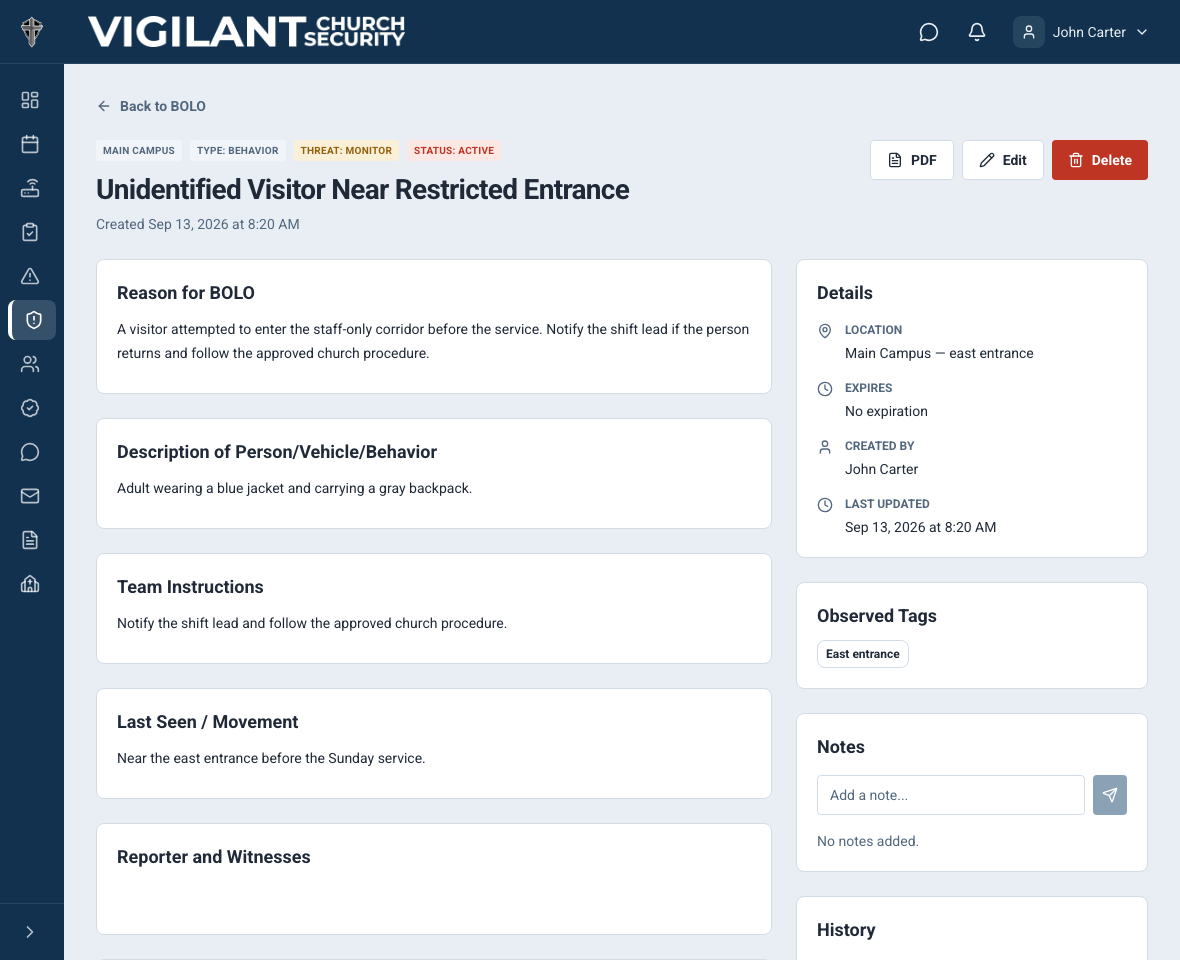
Photos and PDF
Open a photo to inspect the identifying information. If an image is unavailable, confirm the connection and contact the alert owner; do not infer missing details from the placeholder.
On the web detail page, select PDF to generate the report. Review the resulting document before saving or sharing it, and share it only with recipients authorized by church policy. Native export and photo controls can differ by installed app version; use the web workflow when the needed control is unavailable.
Archive, restore or delete
When archive controls are available, eligible Church Admins, Directors of Safety and Security, Campus Security Leads and Pastoral & Ministry Staff can archive or restore a BOLO, subject to permissions and campus scope. Use Show Archived to find archived records and Restore when appropriate.
Archiving retains the record and its status but removes it from ordinary lists and active dashboard awareness. Other team roles cannot open its details, notes or photos. Archive and restore actions are recorded in history without broadcasting a new BOLO alert. Review status and expiration before restoring an old alert.
Resolution, archiving and deletion are different actions. Use Resolved or False Alarm to record the outcome; archive to retain a leadership-accessible record. Permanent deletion removes the record and should be used only when authorized by your church's records policy.
If a control is missing
Confirm the church, campus and effective permission with an administrator. Update the mobile app if you are using an older version. For a failed save, preserve the error and check the saved record before submitting again.
Choose who can see a BOLO
In the web create or edit form, choose Everyone with BOLO access or Selected roles when the audience control is available. Everyone is the default; existing church, campus and viewing restrictions still apply.
For a restricted alert, select the operational roles that need the information. Church Admins retain access, including people who also have an operational role. Excluded authors can lose access to their own alert after saving. Review the audience before saving and coordinate with an administrator if you remove your own role.
The current audience also affects app notifications and dashboard visibility. Already delivered emails, device notifications and downloaded PDFs cannot be recalled by changing the audience. Use the web editor if your mobile build does not expose audience or archive controls.