Android App
Read Team Notices and Notifications on Android
Read leader announcements and manage your inbox and device alerts.
Vigilant Church Security for Android is available on Google Play. Install the app and sign in with your Vigilant account. Available features depend on your app version, church and effective permissions.
Read Team Notices
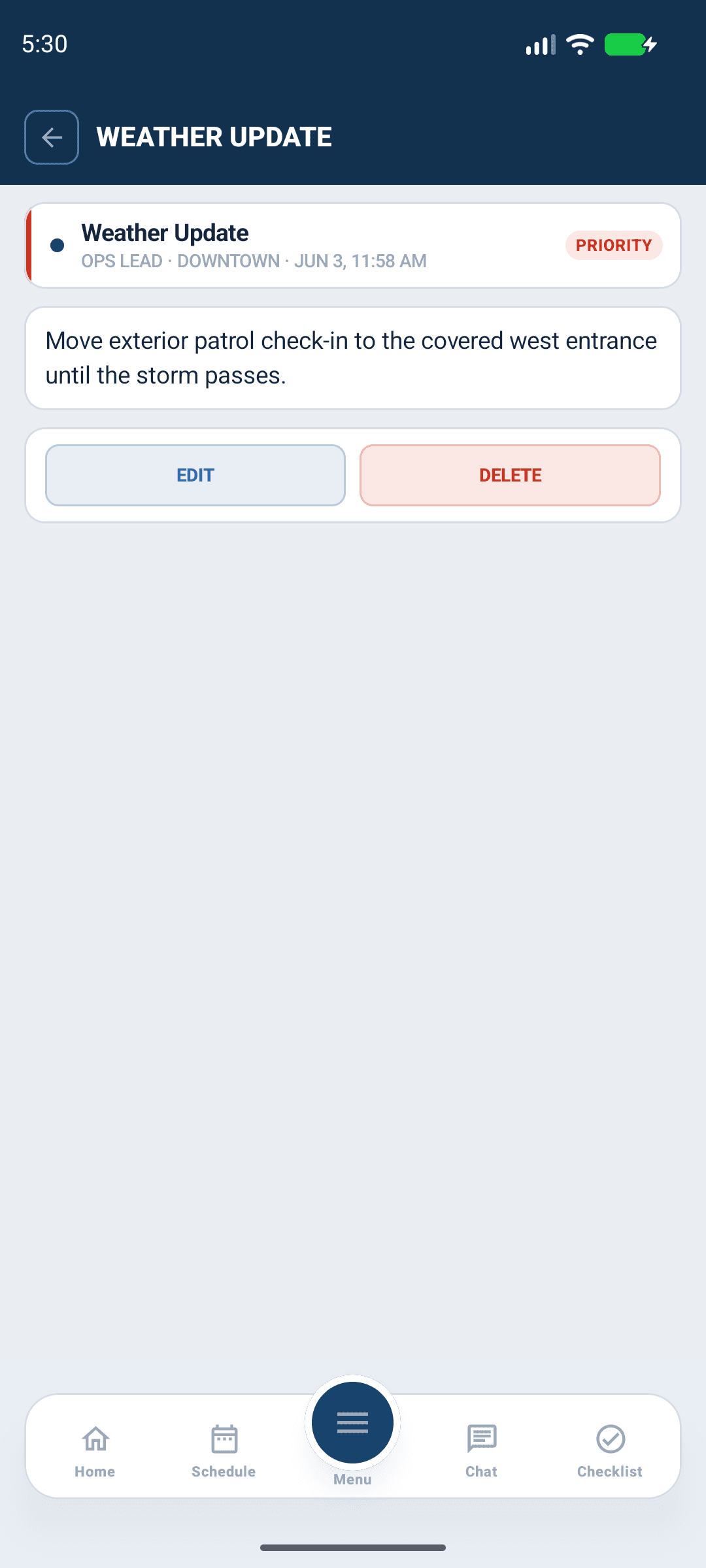
Open the menu and select Team Notices. Open a notice to read its full content, priority and any linked instructions. Confirm the church and intended audience. Use Chat when you need a conversation; a notice's appearance does not automatically record that you completed the requested task.
If your account can author notices and the installed build provides the composer, review title, body, priority and audience before sending. Confirm the saved notice. Use the web app for authoring controls not available in your build.

Android app shown with fictional demo data. View full-size screenshot.
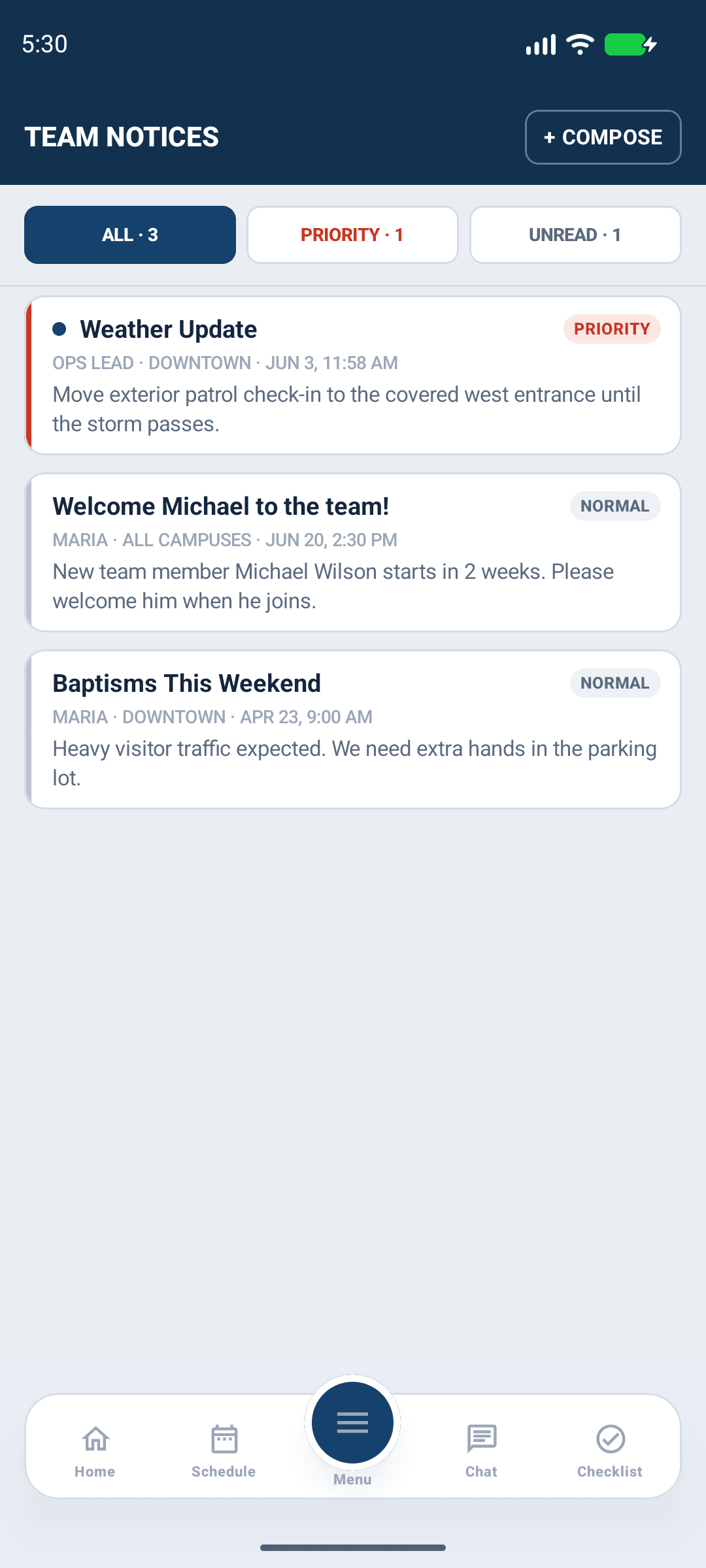

Android app shown with fictional demo data. View full-size screenshot.
Use Inbox
Open Inbox or the notification control to review alerts. Select an alert to open the underlying notice or record. Marking it read changes your unread state. Dismissing it removes it from the active inbox view without deleting the underlying record.
A linked record may become inaccessible if your access changes or it is removed. Switch to the correct church and ask the author or leader to review the audience before assuming the link is broken.
Review device alerts
Check Vigilant notification preferences in Profile and notification permission in Android Settings. Device alerts depend on preferences, network and operating-system behavior. Check the in-app notice itself for the complete instructions. Do not use push delivery as the sole way to communicate an urgent safety instruction.
Training notifications
A training alert can open the native training details. Review the timezone and select Yes, Maybe or No when eligible, then wait for the confirmed response. Reading a notice does not submit an RSVP or record attendance. See Respond to Training Invitations.