Android App
Complete Shift Checklists on Android
Start a checklist, save responses and photos, and confirm completion.
Vigilant Church Security for Android is available on Google Play. Install the app and sign in with your Vigilant account. Available features depend on your app version, church and effective permissions.
Start or continue a checklist
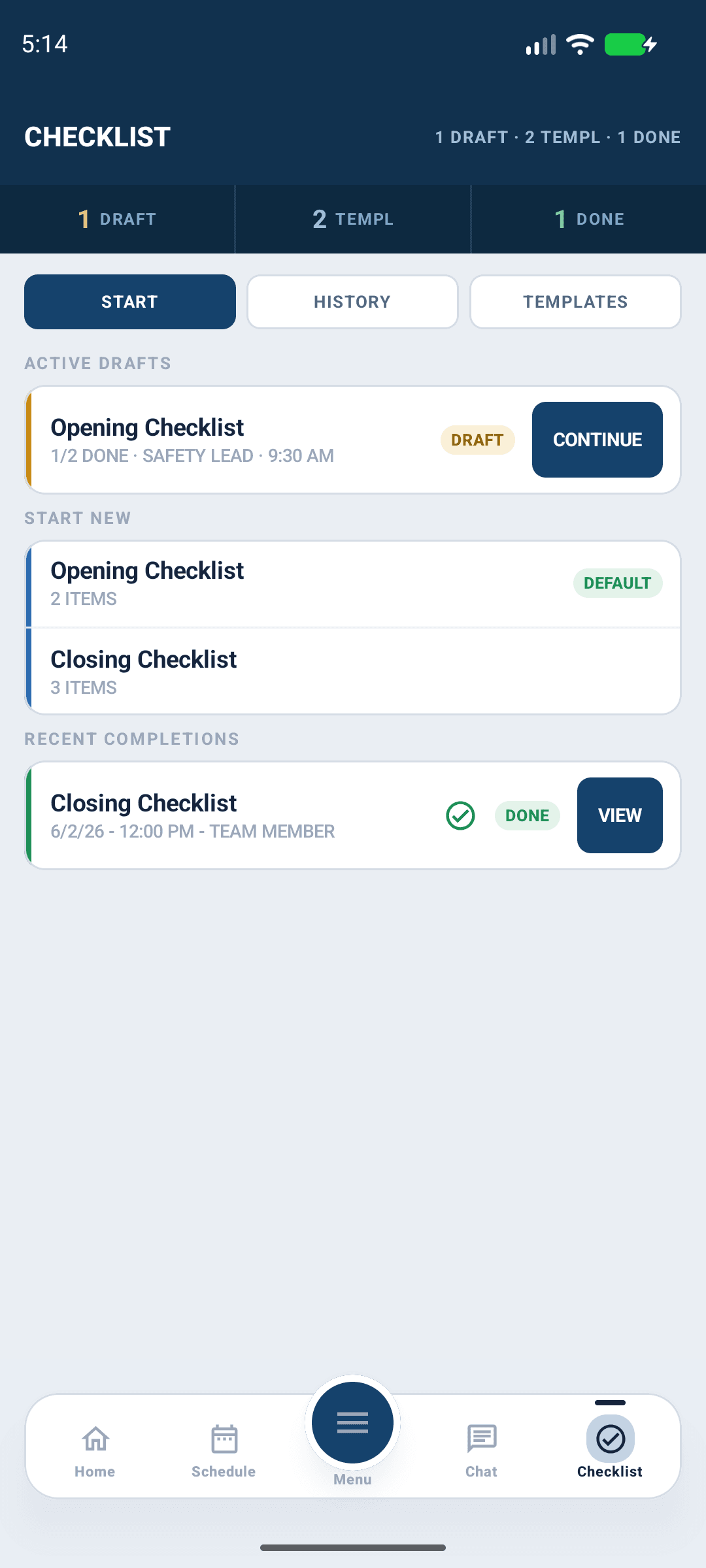
Open Checklist, select the correct campus and available template, then start a run or open the existing draft for your shift. Check the title before entering responses so work is not recorded against the wrong service or location.

Android app shown with fictional demo data. View full-size screenshot.
Record the work
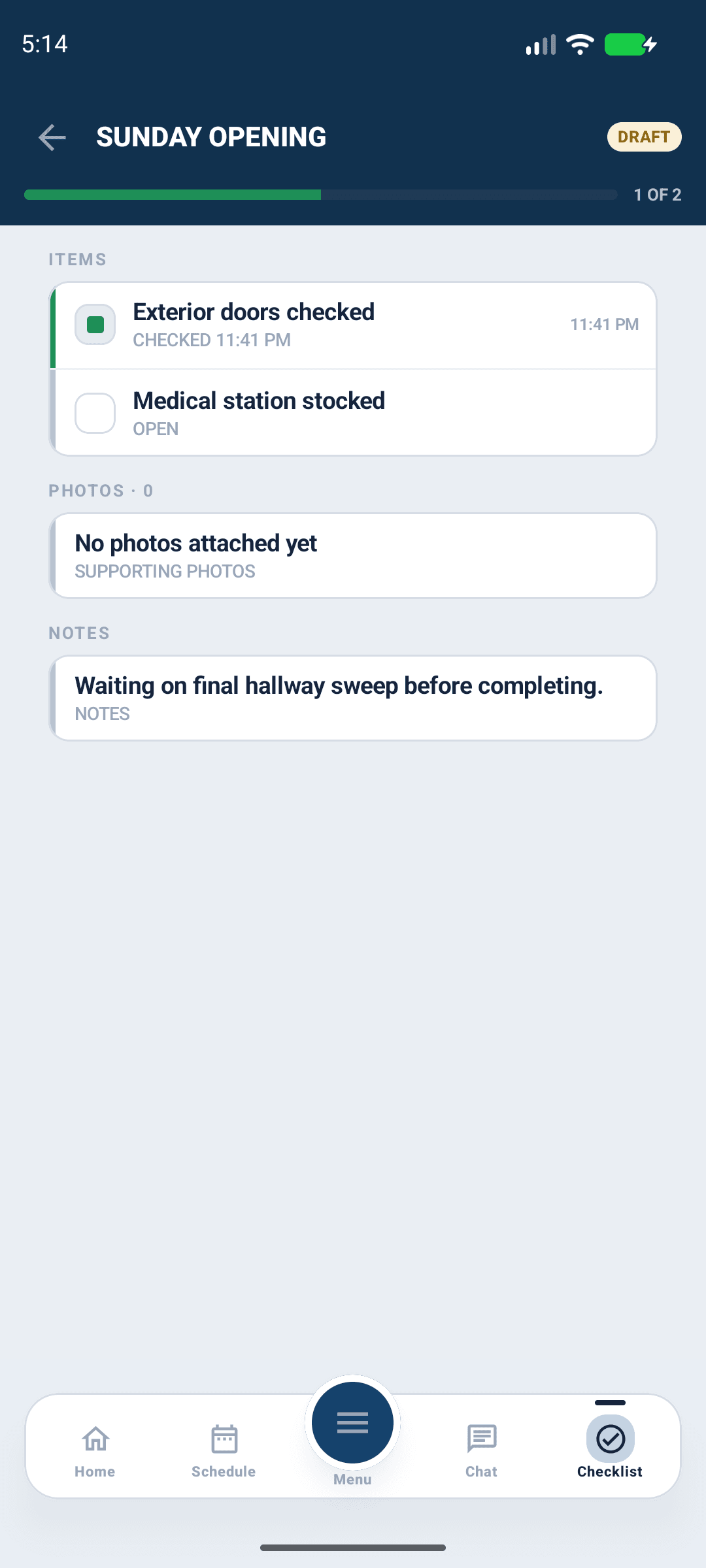
Read each item and record what you actually completed or observed. Add notes where a response needs explanation. When an item offers a photo control, review the selected image and wait for the upload result. Photo upload needs a working connection.
Notes remain local while you type. Select Save Draft or Complete to save them; pausing, leaving the field or leaving the editor does not save notes. Complete waits for the note save before finalizing. Checkbox and photo actions save separately. Confirm the saved run before handing it off; unsaved notes are not guaranteed to survive closing the app.

Android app shown with fictional demo data. View full-size screenshot.
Complete the run
Review every item and explain any skipped, inapplicable or failed step in Notes. Complete saves the latest notes and finalizes the run, even if some items remain unchecked. Wait for the completed status and verify it in history. Ask an authorized leader about corrections instead of creating a duplicate to hide an error.
Read-only or failed actions
Viewing checklists does not grant completion or template-management access. Ask an administrator to review effective completion permission if response controls are unavailable. Restore the connection before retrying an uncertain save, and check the saved run before clearing cache or signing out.
Use the service-day Dashboard section
When the church and your build support service-day checklists, select the campus on Dashboard and use Start, Continue or View beside the intended service. Start requires a connection and a campus default template. Everyone shares one run for that service; continue the existing run instead of starting a duplicate. Today's services do not require your own shift assignment, and completing the checklist does not record attendance. See Use and Complete Shift Checklists.