Android App
Check Out and Return Equipment on Android
Select the correct equipment checkout, record condition, and confirm its return.
Vigilant Church Security for Android is available on Google Play. Install the app and sign in with your Vigilant account. Available features depend on your app version, church and effective permissions.
Check out equipment
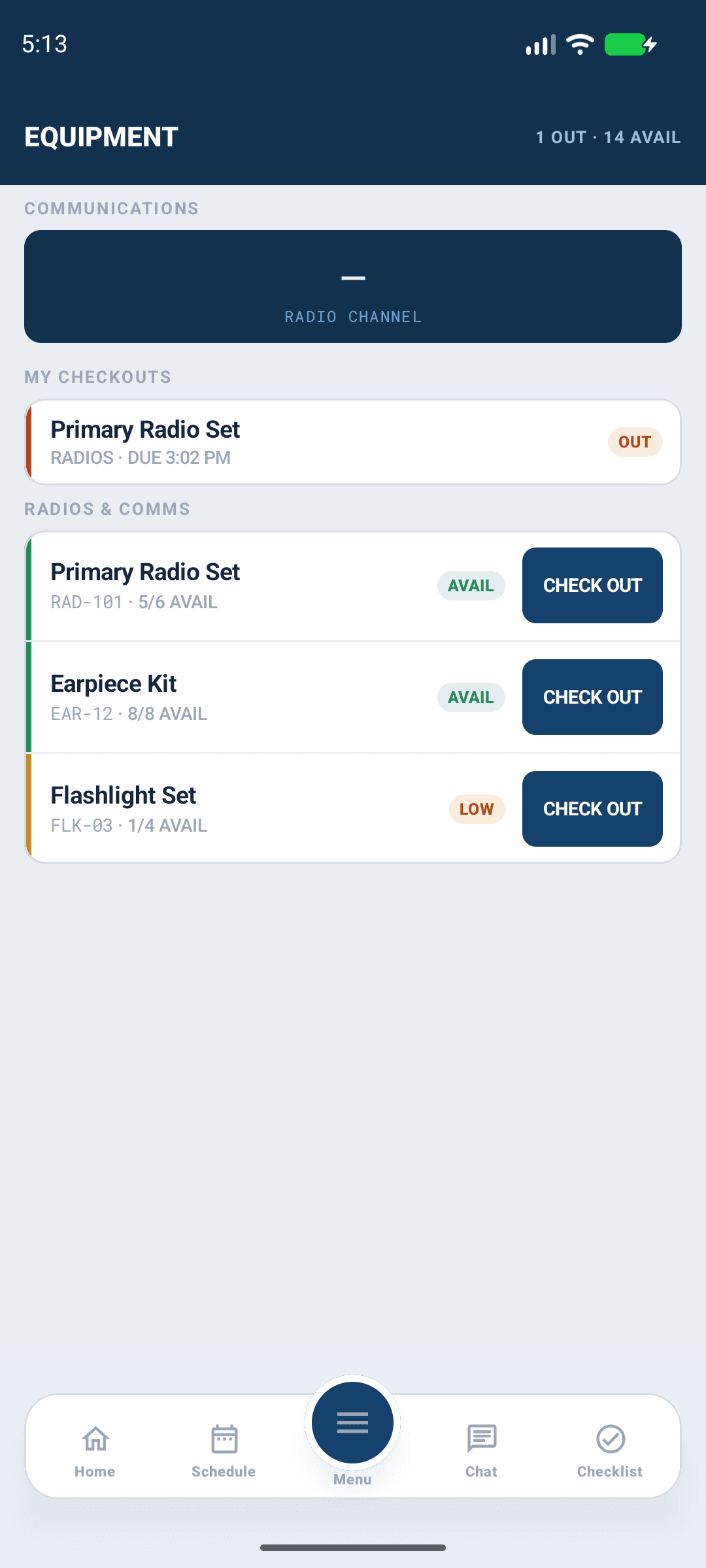
- Open Equipment, or its primary tab when scheduling is disabled.
- Find the intended item and campus. Check available quantity and status.
- Select Check out when authorized.
- Complete the expected-return and checkout-notes fields offered by the form.
- Submit and verify that the saved checkout shows the intended item and holder.
An item marked Maintenance or Retired is not an ordinary available unit. Ask the equipment owner to resolve an incorrect inventory state.

Android app shown with fictional demo data. View full-size screenshot.
Return equipment
Open the active checkout and select Check in. If an authorized control names another holder, verify that you are returning that person's checkout, not a different unit of the same resource. Select the actual condition, such as Good, Damaged or Lost, and provide useful return notes. Submit and confirm that the checkout has ended.
Check-in permission is separate from viewing equipment and from inventory editing. Returning equipment for someone else requires the applicable access. Reporting a damaged or lost return is not the same as retiring the inventory item.
Recover from a conflict
If a return fails or the item was already returned, refresh the record and inspect the active checkouts before retrying. Do not start a replacement checkout just to clear an error. Ask a leader to review any physical item whose recorded holder or quantity is unclear.