Android App
Use Schedules and Attendance on Android
Review shifts, respond to assignments, volunteer, and confirm service check-in records.
Vigilant Church Security for Android is available on Google Play. Install the app and sign in with your Vigilant account. Available features depend on your app version, church and effective permissions.
Review and respond to a shift
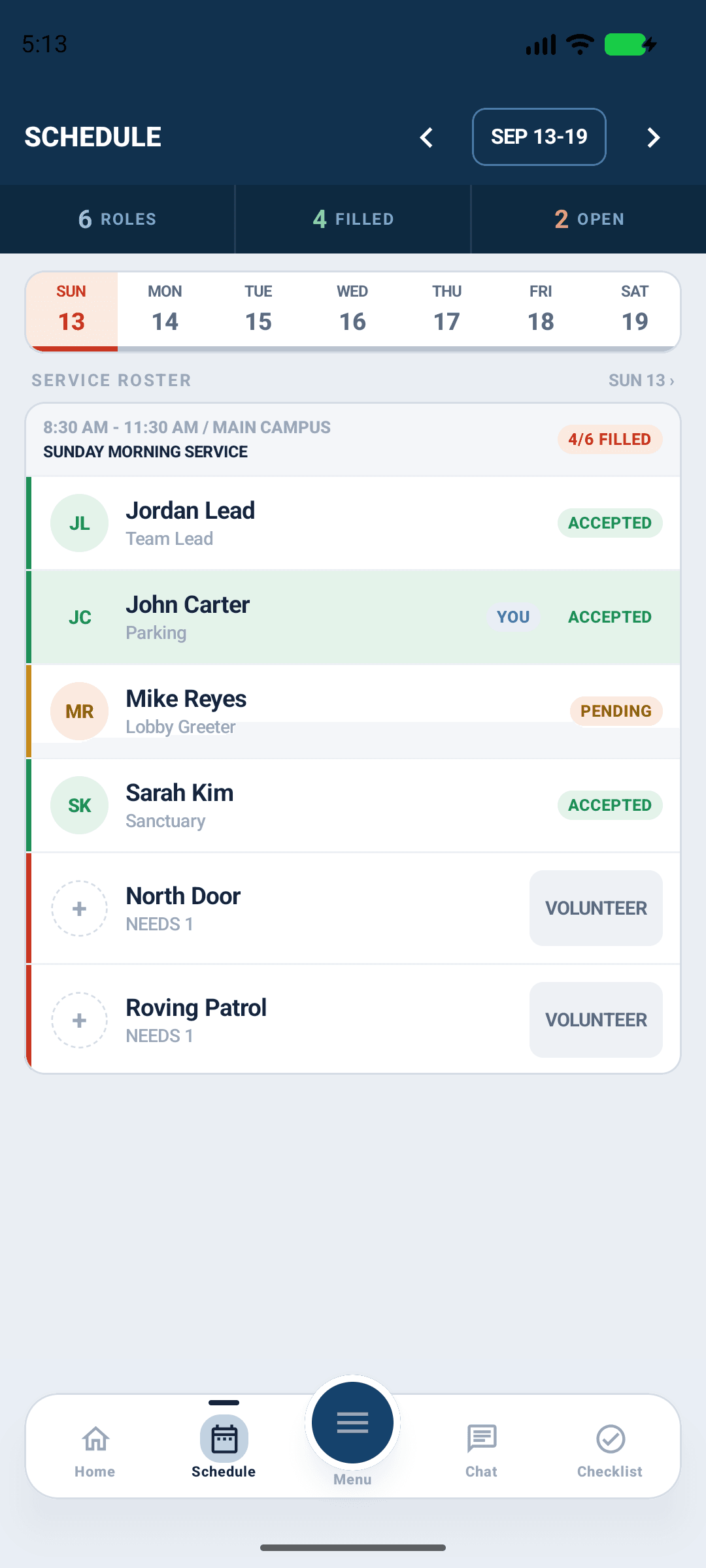
Open Schedule, choose the relevant date and campus, and open your assignment. Review the service time and assigned role. Use the offered accept or decline action and confirm the saved response. If Planning Center manages responses for that campus, follow the indicated Planning Center workflow.

Android app shown with fictional demo data. View full-size screenshot.
Volunteer for an opening
Open an eligible service and use the volunteer action when available. Check the campus, role and time before submitting. A pending volunteer request is not an approved assignment; reopen it later to confirm its status. Missing controls can reflect permissions, campus eligibility, disabled scheduling or Planning Center ownership.
Check in and out
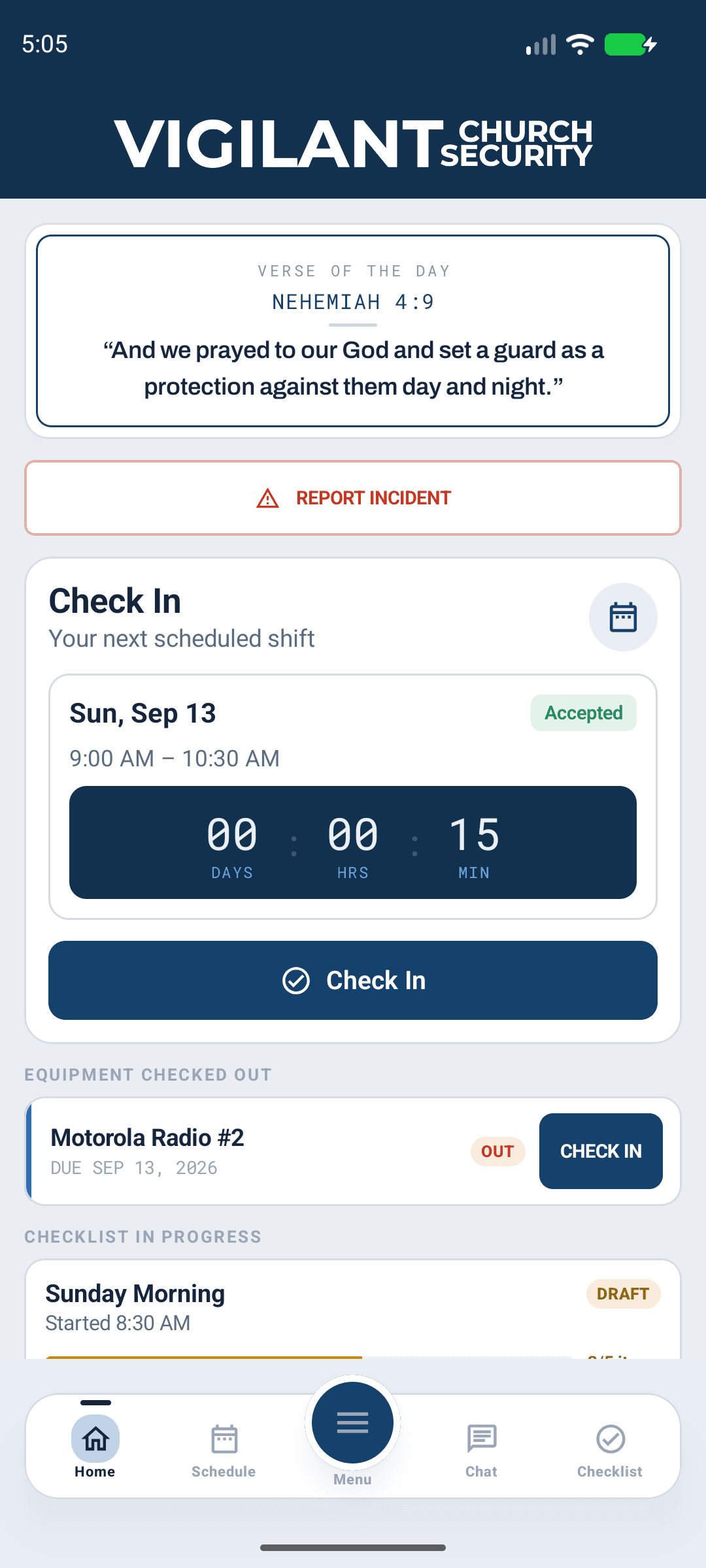
From Dashboard, open the available upcoming-shift action during the check-in window. Confirm the service and campus, submit check-in, and verify the active attendance state. When finished, use check-out when offered and confirm the recorded result. A response accepting a shift does not check you in.
For a Planning Center-owned attendance flow, follow the check-in provider's instructions; the app may not provide local check-out for that record. Do not create another attendance record to resolve an uncertain result. Refresh and ask a service leader to review it.

Android app shown with fictional demo data. View full-size screenshot.
If a response fails
Restore the connection, reopen the assignment and check its current status before retrying. Preserve the visible error and contact Support if it persists. Service attendance and training attendance are separate records.
Participation and source details
View Schedules and Participate in Assigned Shifts are separate permissions. A service may have a specific date instead of a recurring weekday. An unspecified staffing target or open-slot count means unknown, not zero or full coverage. Update an older build if dated or Planning Center services fail to load, then refresh before repeating an action.