Android App
Find and Read Procedures on Android
Open approved church procedures and troubleshoot missing or unreadable content.
Vigilant Church Security for Android is available on Google Play. Install the app and sign in with your Vigilant account. Available features depend on your app version, church and effective permissions.
Find the document
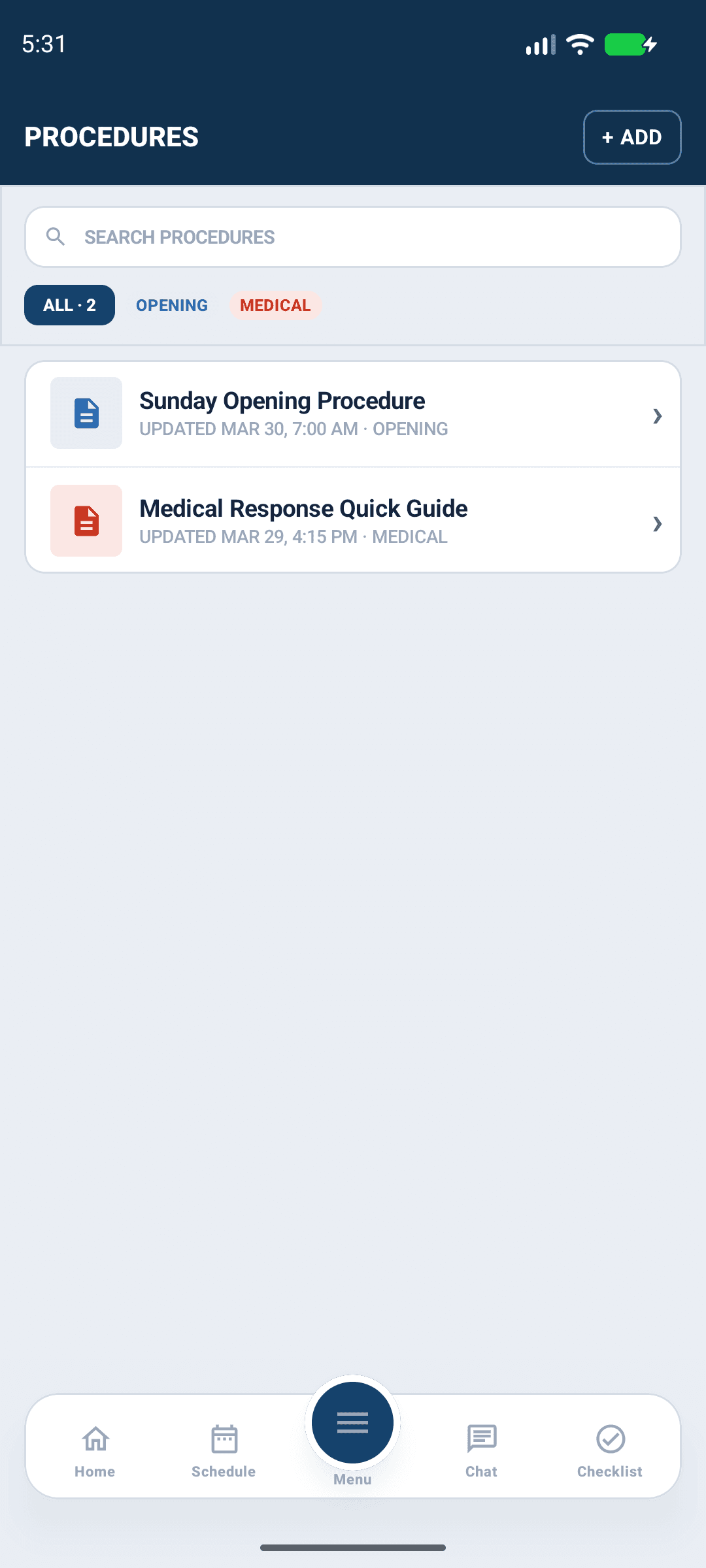
Open Procedures from the menu. Search or browse the available library, then open the intended title. Confirm that the procedure applies to your church, campus and assigned duty.

Android app shown with fictional demo data. View full-size screenshot.
Read and navigate
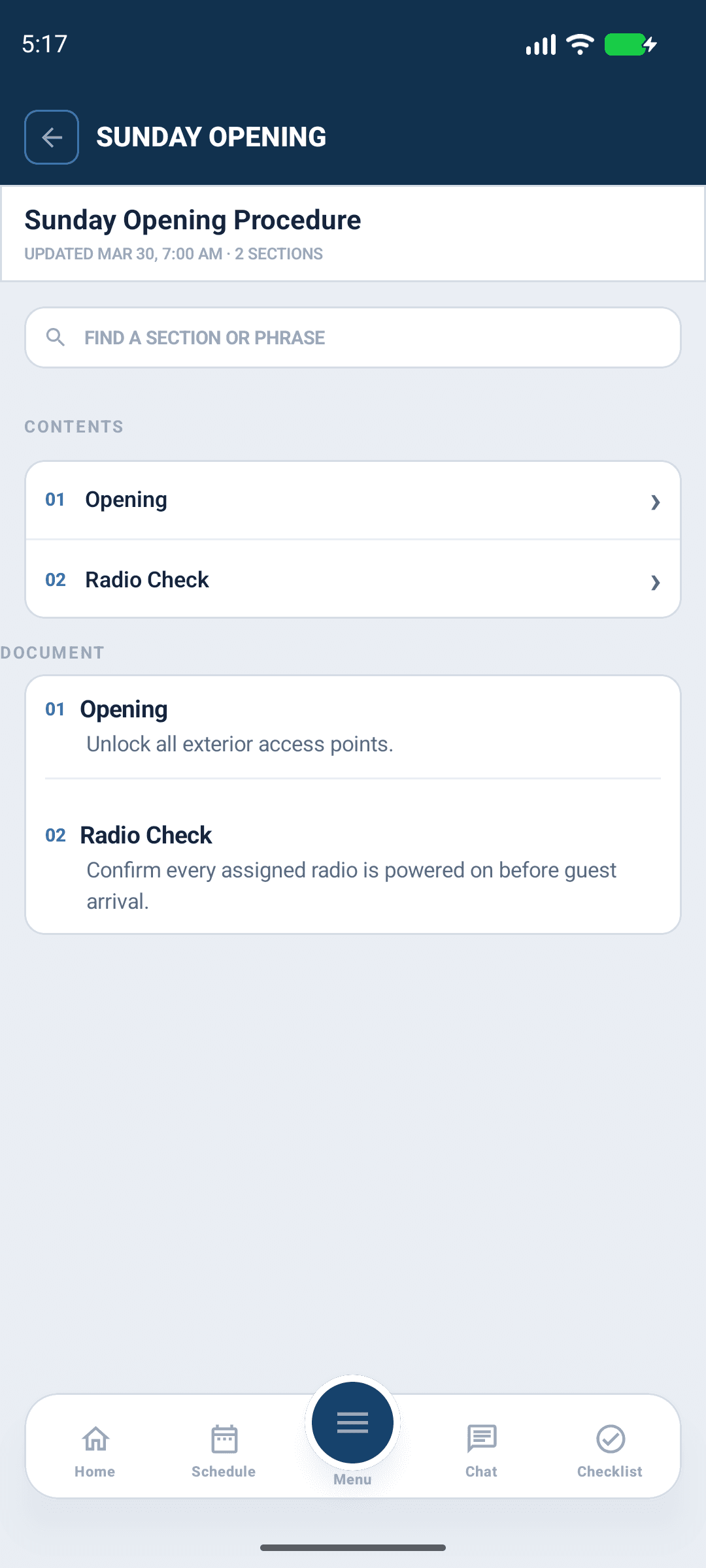
Read the headings and use any available chapter-navigation control to move through the document. On a narrow screen, scroll through the document when a contents sidebar is not shown. Check that essential tables, images and links are readable before the procedure is needed during a service.
Converted content may not reproduce the original file's exact fonts, page breaks or layout. Opening a procedure once does not guarantee that all of its contents or images are available offline.

Android app shown with fictional demo data. View full-size screenshot.
Missing or unreadable procedures
Confirm your church selection, procedure-viewing access and connection. Reopen the document, note the title and affected section, and ask its maintainer to check the source file. Scanned or image-only PDFs may need a text-based replacement.
An authorized maintainer can use the web upload workflow to replace an obsolete or unreadable file after leadership review. Do not distribute an unofficial replacement as the current church procedure. Use Support if the approved source renders incorrectly, describing the section without attaching sensitive material unnecessarily.